Month: August 2021
Twitter Digest
- RT @canoeheads: Tomorrow!
canoe trip was 10 canoesNow 🙁
JUST 3 canoesYup 6 ppl on a great big school bus
Show up!
at Laurier park b… 2021-08-23 - Honestly I’ve grown a bit tired of the trend towards 500pp multi-volume sci-fi books these days, but when I reached… https://t.co/HdvskQVw6C 2021-08-24
What’s your Pi doing?
What am I doing with my Pi? Quite a few things actually. I installed the driver that lets it boot off an external USB drive and now it runs off the old 500gb drive from the old linux box—so there is plenty of room. Might as well use some of it.

Below is my current list (for posterity). One thing to note is it is all perfectly free and open-source—which I find beyond impressive.

Shairpoint-sync music server
This cool piece of software turns the Pi into an Airplay receiver. Since we run our household audio through Apple’s airplay system this means we can now also stream the household music to the Pi and have it output it.

L is 98% in charge of the daily music which means while she can listen to her tunes at her desk (with her desktop speakers) and through the house network (which currently has speakers in the kitchen, living room, tv room, upstairs bedroom and upstairs bathroom), I am usually listening to the audio from speakers located down the hall. By outputting the Pi’s audio into my desktop speakers I can now listen to the sound right here at my desk.
I had to write a small shell script to turn the audio off when I wanted to watch a youtube video or listen to my own music but so far its a pretty cool feature. Note: the Pi gets cranky with wanting to output the audio through its hdmi port and sometimes the solution is not seamless.
Nginx Proxy Manager
I have written about this and it is so cool to be able to route and reroute network traffic with a few clicks whenever I change something. So far it is forwarding 5 different domains to various computers and ports around the house.
Webhost Apache/php (2 sites)
The Pi currently runs 2 “test” websites that I use for development. This is what they currently look like but that changes whenever I have a new project.


A typical Apache/php install so nothing impressive but it gives me a lot of flexibility and is plenty fast enough for the minimum amount of user that will ever see it.
MySql server
This is really just an adjunct to the above install. Along with php, having a mysql database serve makes making dynamic websites easy. But I got into mysql because I could no longer run Filemaker on my computer anymore so I tend to treat it as a separate entity when I want to build database.
Pi-Hole
This one is still in development and I am the only one using it. Essentially what it does is route all the web traffic to my computers through the Pi and blocks all the ads.. I was already doing this on my desktop using the Brave Browser but now it should theoretically work on my phone, Apple TV, and all the rest of the computers while allowing people to use whatever browser they want.

It isn’t fully implemented yet mostly because I still restart the Pi a lot and it would take down the ability for people to use the internet whenever I did that. I can hear the screaming now!
Nextcloud server

I just posted about this. Again I’m not likely to implement this other than in a small way but it has so far been interesting to use. It auto posts any new images I take with my phone so I no longer have to sync it up manually and gives me a place to stuff files I want to share. And with the big hard drive theoretically I could store a lot of stuff there although that might mean speeding up the network etc to make it truly functional.
So we will see.
Samba File Server
The Pi is also set up as a file server using samba (which just means it’s compatible with apple, windows and linux). I have used it for temporarily moving files around but until I get some sort of RAID (Redundant Array of Independent Disks) and backup set up I am not likely to use it to store anything important.
Twitter Digest
- Anyone else see a commedia dell’arte mask in the new logo?
#yeg #elks #pareidolia https://t.co/2B4Sj2RoAN https://t.co/Vo1sULRkJA 2021-08-16
- RT @RexChapman: This teenager in Canada got a knock on his door from the neighbors and thought he might be in trouble for dribbling his bas… 2021-08-18
- RT @lavermeer: Woot! Our @DesjarlaisBlake sign has arrived in the Griesbach community of #Griesbach riding. Go go go, Blake! https://t.co/Z… 2021-08-20
- RT @sefjb: Listen to this plea. We lose so much by not properly supporting the Canadian creators of content. We need to act, or we lose ou… 2021-08-20
Drop Dropbox?
Are we tired of computer posts yet? My Pi acquisition, along with a growing interest in linux and open source software has been taking up a lot of my time lately. And I need to write this stuff down, since that was one of the reasons why I started this blog, way, way back when… It’s sort of my backup memory for all things computer related. So you get to suffer.
Control my Data?
Speaking of why, having control of my own data has also been a big thing with me. Part of it was a lack of belief that the Googles or Apples of the world would last (and I’ve mostly been wrong about that) and that my images/blog/posts etc. would still be accessible a decade later… The blogspot blog I started back in 2002, is still going strong and L still posts to it sporadically. Still, I regularly download my Facebook info, repost all my tweets and instagrams to this site and have hosted this blog on servers I control since day one.


With the advent of cloud sharing controlling your own stuff became much more complex. I fell immediately in love with Dropbox. But I was initially (and still am to a certain degree) very cautious about what I put on their servers. It’s hard not to imagine some nameless drone rifling through my folders because he/she was bored. These days I am a bit more knowledgeable and this a bit more optimistic but still… the amount of leverage governments have over corporations should not be underestimated. (This is an interesting article about information sharing agreements between countries and highlights a few instances where they have pressured companies to not only spy on clients/customers but also not be allowed to disclose that they are doing so.)
Honestly, at the end of the day, I am not that paranoid, and don’t actually do much that any government agency would be interested in … but ya know…frankly, its none of their damn business… And I just don’t want anyone erasing or altering what is mine without me having my own copies. 😉
NextCloud
Anyway, back to Dropbox (and Google Drive—which makes me crazy although recently it’s gotten better—and iCloud and even Microsoft OneDrive to name the services I have access to). I’ve always wondered if I wouldn’t be better off using some sort of cloud/NAS (network-attached storage) of my own to store my stuff but it hass always turned out to be too much money for not enough security. (And basically that is still true, despite what the rest of this post implies.)
But a few days ago I discovered Nextcloud.
Apparently its just one of a bunch of self-hosted cloud solutions but it had good reviews so I decided to look into it. And wow. Just…wow. Totally open source and free; with desktop and mobile client apps and enough functionality that you could replace the whole google suite: mail, documents, sharing, calendars etc.
Download it, make some space on a hard drive, install it and forward a url to the computer and voila..your own personal dropbox service!
After a bunch of tinkering (I got stubborn and wanted to run it in a Docker container and that made my life much harder than it had to be) and it is now running happily on my Pi (and mac and iphone). I can now take a picture with my phone and have it synced to my desktop moments later. I also have a shared folder set up with L so anything I put in that folder appears in her setup as well (we use this function on Dropbox quite a lot to move files from her ecosystem to mine and back). I’ll be testing and playing with it for the next few weeks just see how well it runs.
The Pros and Cons List
Pros:
- pretty darn private and all on my own physical hard drives.
- unlimited space (at least until I fill up the drive)
- free
- easy to use and setup (at least the client part of it)
Cons:
- not quite as secure as it could be although I am using ssl and looking into encryption which is available
- not guaranteed 24/7 uptime since its on my server and Shaw’s network
- I would need a separate Pi, and a couple of new harddrives to mirror each other if I was actually going to use it instead of Dropbox…which takes it from free to ~$200–300
A word about Docker
Docker is a sort of virtual containerizing system. You can install whatever software you want to run in the “container” and it is separated from the rest of your machine. That way you can install things and be assured they won’t screw with the rest of your setup. The disadvantage is that being separate, it is harder to get things to talk to each other.
Since NextCloud needed to talk to outside my home network and vice versa, it needed to go through Nginx Proxy Manager which also ran in a Docker container. They didn’t really want to talk to each other as they were on “different” networks. After much fussing I had to take down my original Nginx container and make a new one that ran both Nginx and Nextcloud in the same container in order to get it to work. That means if/when I abandon NextCloud I will have to set up Nginx all over again.
Twitter Digest
- Go Canada! https://t.co/YhNhdgQY4X 2021-08-08
- RT @mlrhodes: Fonts matter, people!! ? https://t.co/9O3TSZPE5q 2021-08-10
Twitter Digest
- @FisherSpeaks Albino? And for the life of me I can’t figure what kind of ducks they are. #yegbirds #duck #greisbach https://t.co/HGqJSMtrpH 2021-08-02
- A family of odd ducks. Anyone got any ideas what kind they are? #yeg #yegbirds https://t.co/ohKSDvwvWa https://t.co/yCBQI8xGqu 2021-08-02
- @FisherSpeaks Ya, I'd narrowed the female down to a mallard but never seen anything like the male. Hybrid eh… Cool. Thxs in reply to FisherSpeaks 2021-08-02
- RT @MLobkowicz: PSA: @UAlbertaPress will be accepting #poetry manuscripts between September 1 and 30, selecting up to 3 for publication in… 2021-08-03
Launch CalibreWeb automatically on boot
In an ongoing attempt to make some of my systems automatic and bullet-proof I decided to try and get my CalibreWeb server to boot at startup. This, in conjunction with my autofs setup should have made my CalibreWeb site able to withstand a reboot of either the CalibreWeb host or the computer hosting the database (see below for more on this).
Normally on a Mac (and this is hosted on my old Mac mini which serves as our media server) you just add the program to Login Items in the User control panel and voila.
But since CalibreWeb is a python program and needs to be executed via command line this is a bit tougher. A bit of googling and this is the solution I came up with…
Make a plist
<?xml version="1.0" encoding="UTF-8"?>
<!DOCTYPE plist PUBLIC "-//Apple//DTD PLIST 1.0//EN" "http://www.apple.com/DTDs/PropertyList-1.0.dtd">

<plist version="1.0">
<dict>
    <key>Label</key>
    <string>calibre.launcher</string>
    <key>ProgramArguments</key>
    <array>
        <string>/usr/local/bin/python3</string>
        <string>pythonweb/calibre-web-master/cps.py</string>
    </array>
    <key>StandardErrorPath</key>
    <string>/var/log/python_script.error</string>
    <key>KeepAlive</key>
    <true></true>
</dict>
</plist>
The first array string is where your python executable resides — in my case python3; the second array string is where your calibre-web executable is. I am not sure but I think that the Label string needs to match the file name — at least that seems to be the standard.
And Then
Save it as something like calibre_launcher.plist
Then you need to copy it to: ~/Library/LaunchAgents/ Apparently you can do it also to /Library/LaunchAgents/ but I couldn’t seem to get the permissions correct to be able to do that. And since the computer always boots into a specific user it was ok in the user library folder.
I also had to fix permissions: chmod +x ~/Library/LaunchAgents/calibre_launcher.plist to make it executable and run: launchctl load ~/Library/LaunchAgents/calibre_launcher.plist to activate it. (You can also run: launchctl unload ~/Library/LaunchAgents/calibre_launcher.plist to remove the script from the launch queue.)
Now it should run whenever you boot up.
CalibreWeb Update
It all works. But… it seems if I break the connection between the CalibreWeb python script and the database it won’t recover even when the database becomes available again. So ultimately if I reboot my main computer I still have to restart the CalibreWeb python script.
I currently do this with a bash script (actually I think its now a zsh script…lol). It ssh’s into the media server, kills the python script and then restarts it. Note: I have ssh set up with key pairs so I don’t need to have my password in the script.
#!/bin/zsh

echo "pkill -f /pythonweb/calibre-web-master/cps.py" | ssh '<USER>@mini-media-server.local' /bin/zsh
echo "Killed Calibre Web..."
echo "/usr/local/bin/python3 /pythonweb/calibre-web-master/cps.py &>/dev/null & "  | ssh '<USER>@mini-media-server.local' /bin/zsh
echo "Restarted Calibre Web..."
Save the above as a text file called something like restartcalibreweb.sh and then chmod +x restartcalibreweb.sh to make it executable. Then you can just double click on it whenever you need to restart the remote CalibreWeb python script. The next idea is to make this script run at bootup as well, but I am as yet unsure if the autofs solution will reload the share before this script runs. If it doesn’t then the CalibreWeb will restart but give me the “locate database” screen because it can’t find the share and I will still have to vnc in to the media server and reconnect.
Note from future self: I never did get this to work properly. Sigh
Trials and Tribulations: the Pi edition
Making my Pi

A Pi is just a tiny board in a box. At minimum you also need a power supply and a micro SD card to make it go. Better yet you should have a case, at least some heat sinks and maybe a fan. You will also need a HDMI -> mini HDMI cable if you plan on using a monitor and of course a usb keyboard and mouse. Above is everything I got in my kit (except the power supply which I forgot to include in the pic).
Assembly is pretty easy. Screw the board to the case; screw the fan to the lid; stick the heat sinks on using the self-adhesive pads; plug in the fan to the indicated pins and screw the case together. The only issue was a quick google said the 5v fan was a bit noisy and could be made a bit quieter by setting it up as a 3v fan. That meant figuring out which pins on the I/O board to use—which wasn’t much of a chore.
Flashing
Then you need to download an OS. I chose to go with Ubuntu MATE rather than the traditional Rasbian OS. Simply go to ubuntu-mate.org/download/arm64/ and download the iso file. At this point in time you can choose between 20.04.2 LTS or 20.10. What this means is the LTS (long term support) version is going to be supported at least until April 2023, so if you don’t want to be bothered with updating — you are good for a couple of years. The 20.10 version will need to be updated regularly to ensure everything is secure (actually when I did my download it stated it was only supported to July 2021).
Then you need the Pi Imager software which you can download for your working OS (I chose macOS) as I was working off my Macbook.
After that, insert your SD card in your computer (my Macbook has a regular SD card reader and I have adapters.)
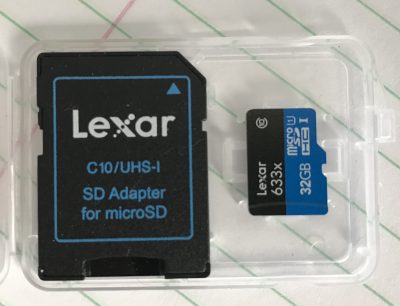
Select the downloaded iso file, select the destination as the SD card and hit “write.” It will completely rewrite the disk so don’t leave anything you need on it. It takes ~5 minutes to write and verify a 32 gig disk.

When it’s done, pull out the micro SD, insert it into the slot on the Pi and power up the Pi (assuming you have already attached a keyboard, mouse and monitor via the micro HDMI port). For convenience you might also attach a network cable but it will ask to setup your wifi if not.
Boot
The boot screen will ask for your language preferences, user name and password, wifi setup if necessary and that’s pretty much it. You will presently have powerful little computer all ready to go, with pre-installed Libre Office, Firefox and more.
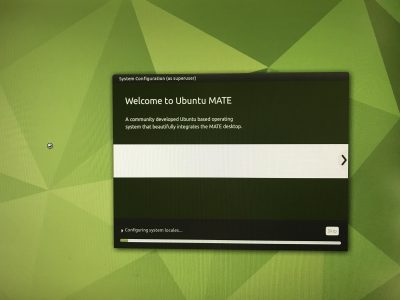
The thing that will take the most time is updating all the packages (software) once you are setup — something highly recommended. It might take up to 10 minutes or so to get everything current, especially if you opt to update to the new 21.04 release. And voila! C’est tout.
Advanced Setup and My Beefs
Of course that’s not really everything. I wanted to setup up a few extra things.
- VNC so I could remote into the Pi desktop without a keyboard or mouse,
- ssh so I could remote in via terminal,
- Barrier, a software KVM (keyboard/video/mouse) so I could share my keyboard between my Mac and the Pi without having to unplug it every time,
- Samba to share files,
- a web server,
- my NGINX Reverse Proxy,
- and backup images of my disk(s).
About half-way through I, as previously mentioned, decided to abandon MATE and go for a pure Ubuntu server install with no graphical desktop. I did get the first three items done on the MATE install so I went ahead and kept that SD card and started fresh on a new one.
One of the beauties of a linux system is I can have an infinite number of setups and just choose the appropriate SD card (or burn one from a stored image) and be up and running again in minutes no matter how badly I screw something up.
VNC and auto start
Three things made me abandon the MATE setup.
1) Ultimately I wasn’t going to need or use it,
2) Getting VNC to start on bootup was a pain and if I wanted to have this Pi in a different location I needed that,
3) Shaw’s modem was causing me conniption fits and I had to do a reinstall anyway. More on that later.
I tried two or three VNC clients and they all worked in some way, but I could get none of them to start up when the computer booted. Issues like this are the reason why an OS like linux is not for everyone. On Windows or OSX it either works or it doesn’t. On Linux, it should. Maybe. If you can figure out the right way to approach the problem. Using commands you have no hope of understanding. Cue swearing.
I ended up using tightvnc but never really got a reliable boot up going before I moved on to different problems.
A Shaw Rant
This is a bit out of order. I did install NGINX and get it running. But in order for it to work properly, I needed to forward the traffic from outside the modem to the IP of the Pi — which I had set at 192.168.1.4. Unfortunately when I first booted my Pi it had grabbed an arbitrary temporary IP of 192.168.150 which I new I was going to change. So later when I reassigned the Pi with the permanent .4 IP the $%^#& Shaw BlueCurve modem/router/wifi box refused to believe me. And since port forwarding was done not by IP, but by machine name, I needed it to reflect reality rather than its own personal prejudices. No matter how many times I set it up, rebooted things, renamed them and/or re-installed from scratch, it kept forwarding to the .150 address. Which. Didn’t. Work.
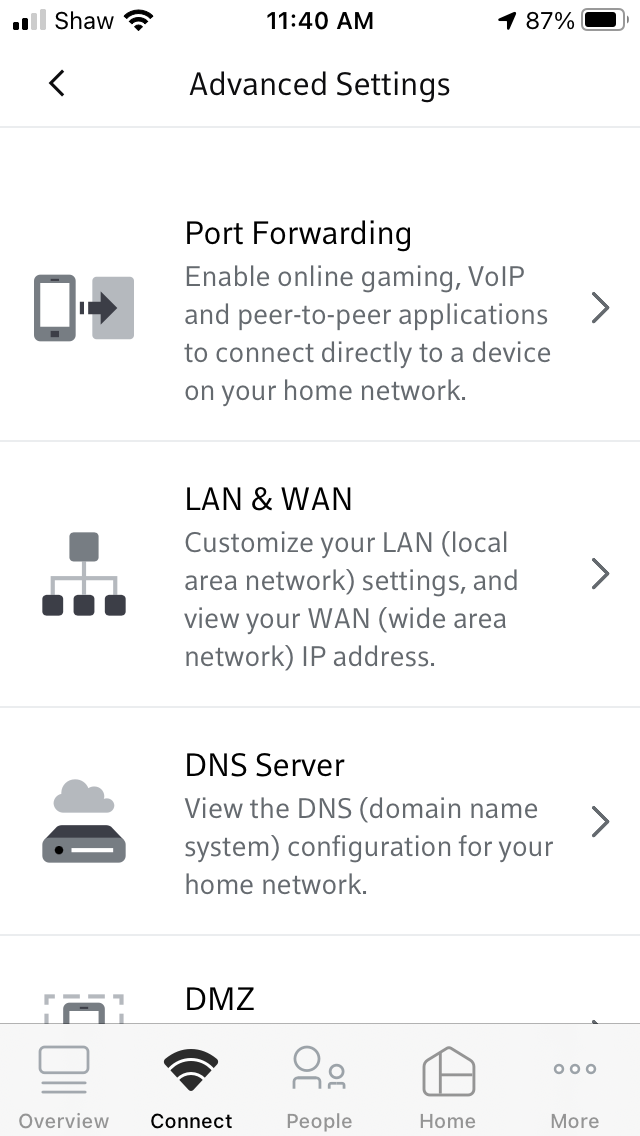

Eventually, after days of frustration, I waited until everyone had left the house and had to do a factory reset of the modem and then set it all back up again before it would forget that original “temporary” assignment. This time it grabbed the actual IP (which by this time was the Ubuntu server install with a different IP of 192.168.1.3) and I could forward traffic to the appropriate computer. Honest to god I have no idea why something so simple has to be so hard. This is the second time the asinine setup of the BlueCurve modem has caused me days of grief. Last time I broke the modem so bad they had to replace it. If I had the spare cash I would be tempted to just turn the Shaw modem into a plain modem and install my own router (like I used have using my old Apple router which sadly stopped working) so I could control my own network without having to resort to Shaw’s idiotic external website or an extra app to do something so basic (at least basic for a router, which after all is supposed to …well… route). But that of course comes with its own set of problems and probably would mean breaking it all over again.
Images
The last thing I wanted to touch on was disk images. After I got the Ubuntu MATE setup the way I wanted it and before I abandoned it, I popped the 32 gig SD card back in my Mac. After a lot of trial and error — and googling — I figure out if I used Terminal to run this command: sudo dd bs=1m if=/dev/rdisk2 of=/Users/admin/Desktop/piMATE.img then 379 seconds later ( around 6 and a half minutes) I would have a fully functional image of the disk on my desktop. At this point I could then use that image to burn the setup to another drive, including the 500gb harddrive I wanted to use instead of the SD card, or another SD card. It worked flawlessly. This the coolest part of the whole experiment.
dd speed
The dd command was a bit finicky. The first time I ran it I didn’t set the block size (bs=1m) and I didn’t use the rdisk command.
sudo if=/dev/disk2 of=/Users/admin/Desktop/pitest.img
As a result it took 8783 seconds (146+ minutes or 2.5 hours) to make the same 32gig image. As it is, when I did an image of the 500gig drive with the correct commands it still took 5461 seconds (1.5 hours). And I need to find drive with a spare 500gig to store the image on. My current project is to try and figure out how to shrink an image, as I know that the actual drive barely has 20gig of data on it —the rest is just blank space. Always something…
Ubuntu Server & Concluding…
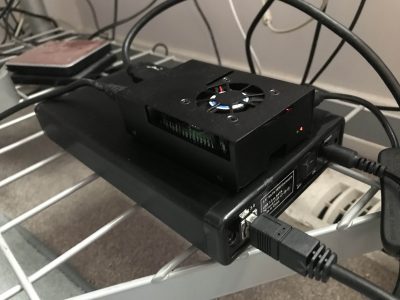
Below is my new toy with hard drive. As stated, I eventually installed Ubuntu server which has to be done completely by the command line interface, but by this time I was pretty comfortable with that. Everything else went pretty smoothly after so many fits and starts, and it now does everything I want it to including managing the internal web routes, serving two web development sites with php and mysql, and being used as an extra file server.
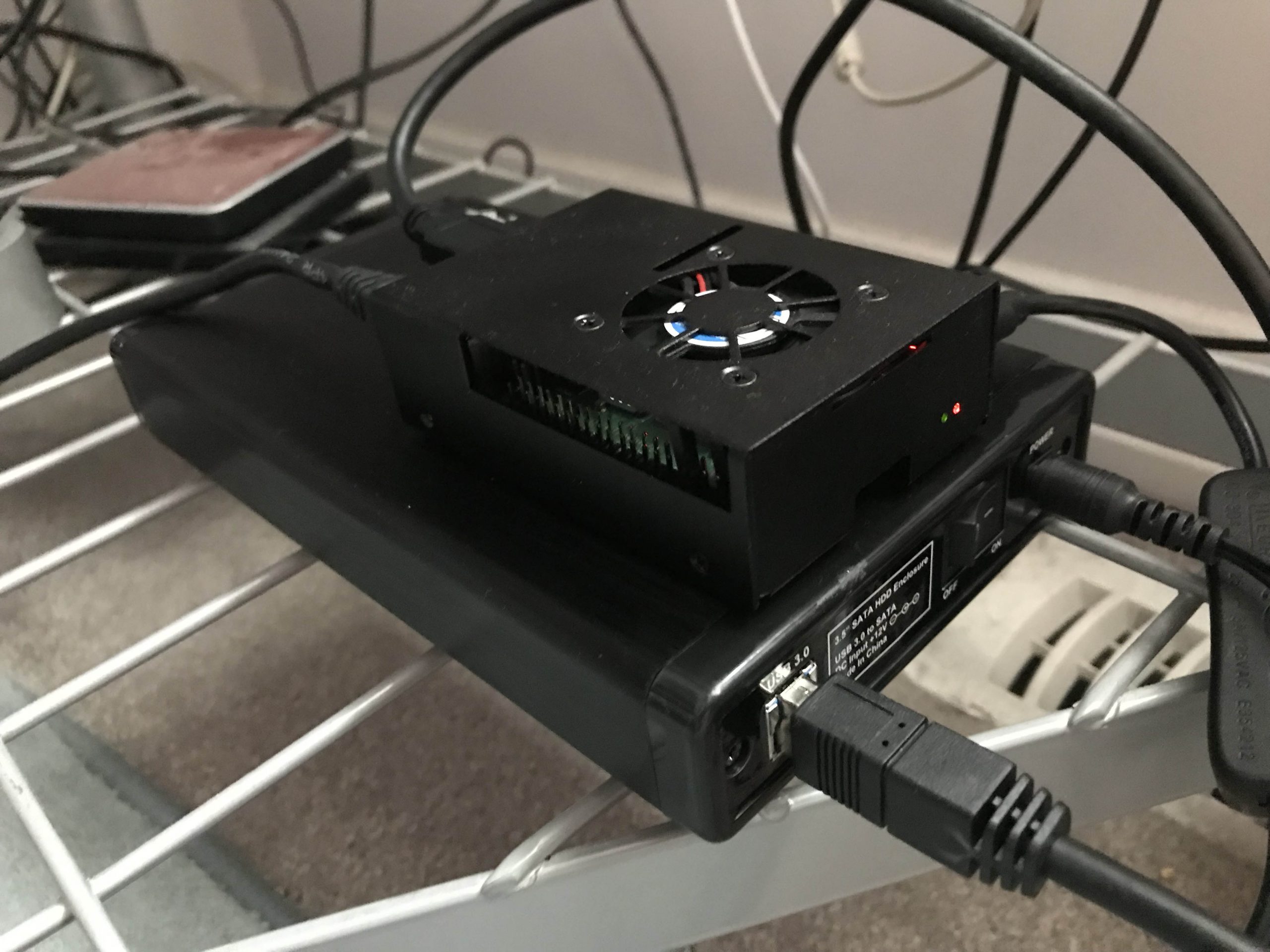
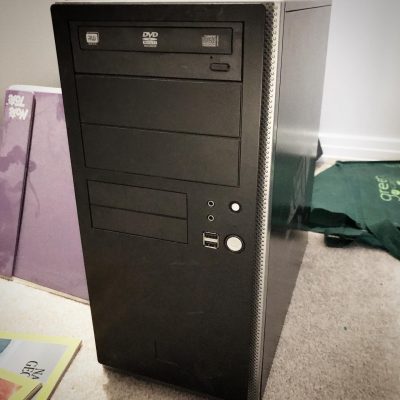
And, sadly, I delivered my old black PC to the computer recyclers. RIP old fellow.
Pi Day
I made Pi
A couple of power failures too many and my old PC which I had converted to a linux box was starting to wear. I had installed NGINX Proxy Manager on it and a) it was a bit slow and b) wasn’t coming back up after power failures. And since I had routed most of my internal web access through it it was… well… annoying.
What made it worse was after a power failure I had to haul the old black box upstairs, plug it into my monitor and keyboard and reboot it it to get past a bunch of warnings. Then haul it back downstairs and reboot it again. The last straw was the third time when the hard drive showed an error that I couldn’t fix from the prompt.
Talking myself into it.
I had been sniffing around Raspberry Pi’s for a bit now. For those who don’t know, Raspberry Pi’s are a single-board hobby computer that are dirt cheap. The latest iteration, the Pi 4b came with 8 gig of RAM which was 6 gig more than my old box had.
Specs
- 8 gig Ram
- USB 2 (2) and 3 (2)
- 2 HDMI ports
- gigabit ethernet
- Quad core ARM 64-bit processor @ 1.5GHz
- 2.4 GHz and 5.0 GHz IEEE 802.11ac wireless,
- Bluetooth 5.0
- Micro-SD card slot for operating system and data storage
The old Linux box, on the other hand, had 2 cores, 2 gig of ram, no HDMI, no wifi, no USB 3, 10mb ethernet, and no bluetooth. The only saving grace it had was it had payed for itself many times over.
Costs
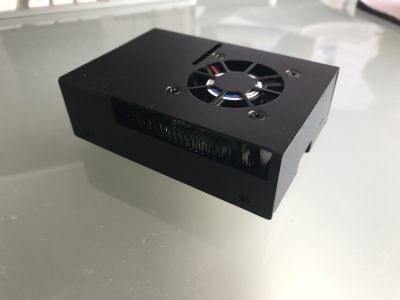
A Pi though, was just a plain board; so in addition to the cost of the unit I would need some new cables, a case and a power supply. I found a combo deal for the extras and made a trip to Memory Express to pick it all up.
$112.99 Pi 4b 8gb ram
$24.99 Case/fan/power supply/heatsinks kit
and
$14.99 hdmi -> hdmi mini cable
$24.99 external case for my old 500gb drive
Total: $186.86 including tax
A steal! Of course I also need 16+ gig micro sd card (~$20) but thankfully I had a couple of 32s already. I also discovered I only had one usb keyboard (all my old PC keyboards were ps2) — so that was a pain having to swap back and forth. But after it was setup I wasn’t going to need one so I just toughed it out.
What OS?
I hemmed and hawed about what to install. Since this was a machine for learning and using linux I wanted as close to a vanilla experience as possible. In the end I settled on Ubuntu Mate as it was pretty close to what I had used on my old machine (Mint Mate). Most people go with a Raspbian OS install which is the default but it is Debian based and I wanted to stick with Ubuntu. ubuntu-mate.org/raspberry-pi/install/
I also wanted to be able to boot off an external USB drive so I had to “flash the eeprom” … essential write some permanent code to the chip so it would recognize the external drive as a bootable one. The only really scary part of the process but it worked just like the install instructions said it would.
Once again in English
Linux is an operating system. A distro (i.e. Ubuntu, Debian, Mint etc.) is a variety each of which may have made different choices in its history about which components to use to accomplish certain tasks. Sort of like a carburetor vs fuel injection on cars. A flavour (i.e. Mate, KDE, XFCE) is essentially just the desktop environment and apps; it may have different options installed and choose different base applications like word processors or web browsers. Think the SE model of your car vs. the LE model.
In most cases you can mix and match a lot of the options and customize your setup as much as you want because they are all based on the same core operating system.
In the end
To skip ahead, I did get a good install of Ubuntu Mate up and running — although once again getting the VNC client to run automatically chewed up hours. But in the end I changed my mind and went with a Ubuntu Server install which has no GUI or desktop (thus “wasting” all the time spent on getting the VNC to work). I figured it would be cleaner and I might as well learn to rely on the command line interface. ubuntu.com/tutorials/how-to-install-ubuntu-on-your-raspberry-pi I did keep the working install of Mate on my other sd card so I can go back to that when I have time and energy.
Also, for next time, I could have saved myself the $15 for the hdmi adapter cable as I have now figured out how to do the install remotely without using a monitor at all. Of course I needed the cable to see what it was I was doing as I learned how to do it without seeing it. So I guess I needed it after all. But next time…

Problems? What problems?
I have to say that the initial install went so very, very smoothly. I had a computer up and running in a couple of hours with zero issues. Of course, it wasn’t the computer I wanted and that’s where it started to go sideways. Most of it was operator error and I learned a lot (more on that in future posts) but one thing sticks out as a stupid error.
I had picked up the cheapest external case I could find to use the old 500gig drive on the Pi. The intention was to make it a boot drive and eschew the sd card entirely. But as I mentioned the drive was now showing errors and I had files I wanted to retrieve. I had intended to boot the old box from the drive after I moved it in to the case and drive and troubleshoot the drive using my Mac. But it was a USB 3 case with no backward compatibility. And the old black box only had USB 2 so it now couldn’t see the drive. Deja vu back to the original install Sigh.
No problem. I had borrowed one of my other external cases (from my backup drive) when I did the initial install way back when, so I could just swap cases. The problem arose when I broke something in the swap. The older case was not meant as a replacement unit and had tighter tolerances. By the time I had swapped drives for the 4th time it no longer powered up the drive…I must have bent something not meant to be bent. F*ck. So the new case went to my 2TB backup drive and back to my desk and I need to go get a new case.
At the end of the day (actually I think this was day 3) I decided I could forgo retrieving anything off the 500gb drive and, after I got a new case, I just reformatted the drive and started from scratch. Hopefully I didn’t forget to backup anything important but que sera, sera. I also realized much too late that of course I could have continued to run the Pi off the sd card and accessed the old drive in the original case I bought for whatever troubleshooting needed to be done. Sigh again.
My best moment in the whole process though, was when after I was up and running and happy with everything, I made an image of my sd card onto my Macbook. And then I plugged in the external, wrote the image to the disk, plugged it into the Pi and — omfg — the thing Just Worked.
In conclusion
So. I now have a fully functional computer about the size of a pack of cards that will do pretty much everything a light-weight computer user would want. The Pi’s have no graphics card per se so games are not really in the cards and they say it can struggle with high quality YouTube at times but that’s not really important for most people. On the other hand it can run two monitors right out of the box.
Linux has open source options for pretty much everything from an office suite to image editing that are compatible with most standards and can run most of the popular web browsers like Firefox and Chrome. So for <$200 (providing you have a monitor, mouse and keyboard) you can have a pretty damn fast computer that won’t be so different from a Windows machine or a Mac.
I have a lot more to say about the install but I think it will be a separate step-by-step-ish post. Suffice it to say after about 3 or four days of installing, googling and reinstalling I have a setup I like and can backup/restore easily. So it’s time to let the breaking commence!
Twitter Digest
- RT @archeohistories: Costume of 16th Century. Fencing Doublet featuring a protruding peascod waist Western European about 1580 CE. Leather… 2021-07-26
- I discovered autofs on my Mac today. My world is transformed. #osx #unixunderpinnings 2021-07-27
- I made a pi. Raspberry that is ?
#ubuntu #linux https://t.co/Ne8cSPHrKQ https://t.co/8EUU1A8Yb6 2021-07-30