NGINX Proxy Manager

What’s it all about?
My home server was just revolutionized! I’ve run several websites on my home network for years for testing purposes. Recently I was doing some work for hire and I needed to open them up to the wider internet. In the past I would just open up a bunch of port forwards and be happy.
Port forwarding: generally web traffic travels though various devices on a port 80 (http) or port 443 (https). You can open up other ports on your router and forward them to specific devices e.g. external traffic sent to http:macblaze.ca:8083 —> internal route 192.168.1.250:80
This results in opening a bunch of ports on your router (insecure) and having to give clients and others oddlooking urls like macblaze.ca:8083.
And recently Shaw has upgraded their routers to use a fancy fancy web interface that actually removes functionality in the name of making things easier. So my linux server, which had a virtual NIC (network interface card) with a separate IP, didn’t show up on their management site and I was unable to forward any external traffic to it.
But up until this week it was a c’est la vie sort of thing as I struggled to try and figure out how to get the virtual NIC to appear on the network. And then I saw this video about self hosting that talked about setting up a reverse proxy server.
NGINX Proxy Manager
Find it here: nginxproxymanager.com
Turns out this was what I was supposed to be doing all along. A reverse proxy senses incoming traffic and routes it not via the port but by the dns name. So now that I have it set up I can just add a CNAME to my dns setup like testserver.myserver.com and it will send it to my home IP on the normal port 80. My router lets it through, passes it to the proxy server which then parses the name and then sends it on to the proper machine/service. So then whenever I set up a new project I can go and add testserver2.myserver.com and the proxy server will send it to where it belongs on my internal setup.
So cool.
My Set Up
I used to have some ports going to my Mac mini server and some ports to my Linux machine. Now all traffic is directed to the linux box. It runs NGINX Proxy Manager (NPM) on a Docker container and receives traffic on port 80. I moved the two websites hosted on that box to ports 8090 and NPM now sorts them based on the various CNAMEs I added to my hosting.
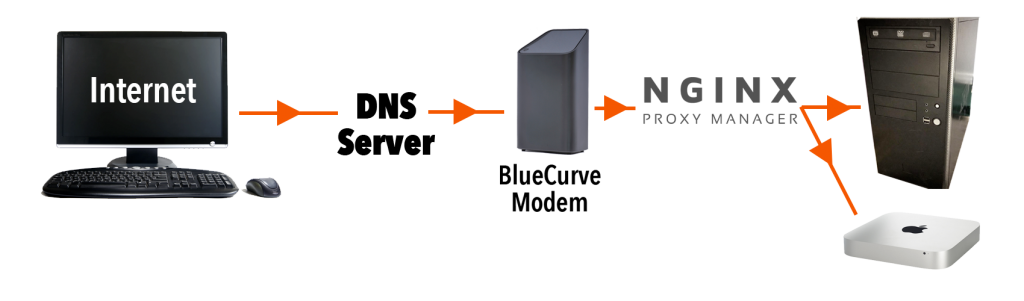
CNAMEs
CNAMEs are canonical names — akin to forwarding in a weird way. www.macblaze.ca is a CNAME for macblaze.ca. So if for some reason the IP address changes for macblaze.ca then www.macblaze.ca will still go to the right place. If I set up a domain myserver.com which points to the IP that is assigned to our house by our ISP (Shaw, Telus etc.) I can then set up the CNAME testserver.myserver.com which will be handled internally. If our IP ever changes (which it used to do quite often) now I only have to change the one record and all the CNAMES will still work.
Docker
Docker is a virtualized container system. I haven’t a lot of experience with it but this iteration of the NGINX proxy is a GUI based implementation of the command line version and the developer decided to set it up as container (sort of a mini virtual computer) so he could easily roll out updates as necessary. So my poor old Linux box is now running virtualized software on top of being a web server and a linux sandbox. Not bad for something from 2009. I will start playing a bit more with docker because it allows you to build a container and implement it with all sorts of things without affecting the main machine and, best of all, be able to throw out any changes and start again. we will see if the old PC is up to it or not.
I also installed docker-compose in order for Docker to run “headless” in the background.
Here’s a good video on the process:
The Process
Docker
(From the video)
Update the Linux system:
– sudo apt update
– sudo apt upgrade
– sudo apt install docker.io
Start
– sudo systemctl start docker
– sudo systemctl enable docker
– sudo systemctl status docker
Check to see if its working by checking the version: docker -v
Then test by installing a test container:
– sudo docker run hello-world
Docker-Compose
sudo apt install docker-compose
To verify: docker-compose version
Then check permissions:
– docker container ls
If you are denied:
– sudo groupadd docker
– sudo gpasswd -a ${USER} docker
– su - $USER
NGINX Reverse Proxy
Make a directory (make sure you have permissions on it)
sudo mkdir nginx_proxy_manager
I had to change permissions. Then create a file in the directory:
nano docker-compose.yaml
Copy the setup text from https://nginxproxymanager.com/guide/#quick-setup and change passwords
- Be sure to change the passwords
Then compose:
– docker-compose up -d
This grabs the specified docker containers, sets up the program and database and creates the virtual machine that is running the NGINX Reverse Proxy server.
You should be able to access the GUI at [http://127.0.0.1:81]
Set up
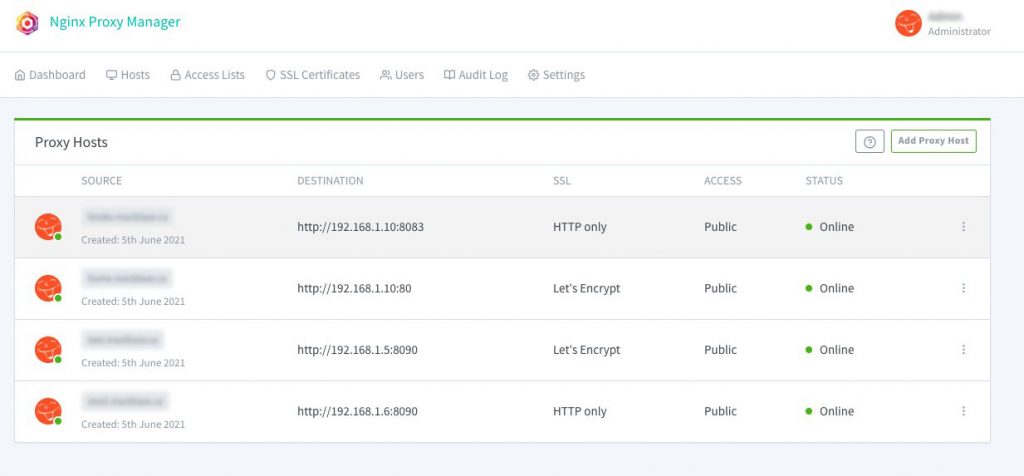
At this point it is a simple matter of adding a proxy host. Be sure to take advantage of the free SSL offered through Let’s Encrypt ( a non profit Certificate Authority).
- click add proxy host
- Add domain name (the CNAME), IP to forward it to and the port
- Go to SSL tab
- Select “Request a New Certificate” from the dropdown
- Select Force SSL (this will auto forward all http requests to https), agree tot eh terms and add a contact email
You should be good to go. Go ahead and add as many proxies as you have CNAMEs and servers.
Remember
And remember to close down all the ports on your router if you’d been like me and opened a bunch. Now you should only need 80 (http) and 443 (https).
Like I said—it’s been life changing for organizing my environment.
Without judgement
A lot of truth in this. People are funny.

Instagram Since Last Time


Tweet not…
As I haven’t been posting a lot of interesting content over the last few years and since I have been automatically uploading my tweets on a weekly basis, it has kind of made the blog look kinda unappealing. So I decided to block all the Tweeting reposts from the main feed. You can still find them all here: https://macblaze.ca/?cat=9 or in the menu under Categories and they will continue to accumulate in the background.
Hopefully the blog will now look a little bit more like a blog.
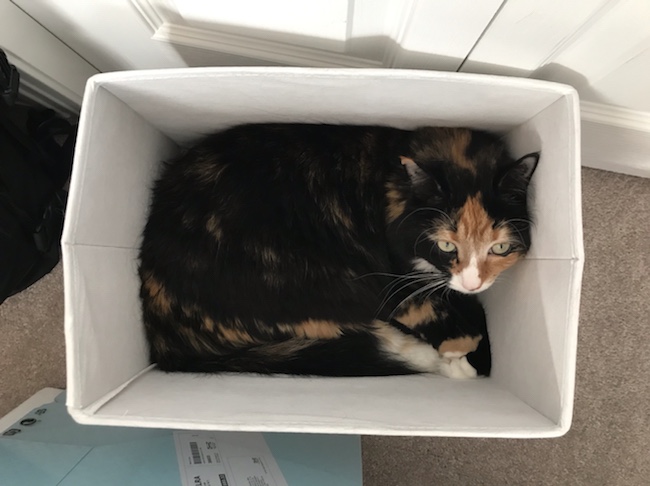
Here’s a cat pic to seal the deal.
Why?
Mostly because I don’t like other entities controlling my content. So I repost all my twitter and instagram posts on my own server. At some point I intend to do the same thing for Facebook but it isn’t as easy do to their security etc. I do however download all my content from Facebook and store a copy in my own archives. Paranoid? No, but I do like to be in control 🙂
Some great writing…not.
A “scientific” journal.
High Quality & Rigorous Review Process
The peer-review process of articles is never compromising and the quality is undoubtedly of high standards. The journal imbibes a thorough, neat and clean peer review process by very eminent and world’s leading scientific experts, thereby flushing out the cognizance paucity and empowering access to relevant information timely, about the upcoming and ever-changing developmental process. The journal is primarily based on values centered on loyalty, commitment, scientific accuracy, and ethics. Our rigorous review process accomplishes our core aspiration to give just right and accurate information to the global citizens.—https://www.scivisionpub.com/why-scivision-publishers
Sigh.
Instagram Since Last Time


Gmail and Filters
Further to my previous post about Apple Mail Issue I have been having issues on my new mac with threading conversations. Normally this isn’t much of an issue but I subscribe to the Standard Ebooks Google Group because that is what they use to track projects and keeping the various projects grouped together is pretty important.
Normally what one does is create a rule on the server (iCloud, your webmail etc.) and the server will automatically sort the mail before it gets to your desktop or phone. For example I have all mu linked in emails go straight into a LinkedIn folder or anything related to ebooks purchased routed to an Ebook folder. This means they don’t bing my phone and aren’t sitting in my inbox and I can check them later at my leisure. But for some reason Google had to be different. For the longest time I had the rule on my laptop which was always on and it would sort the gmail emails and then synch that back up to the cloud—a bit of a hack but I couldn’t be bother to try and figure out what Gmail was doing. But the new mini goes into a deeper sleep and doesn’t sort—so I decided to figure out the actual correct solution.
I will save all my the swearing at Google. Suffice it to say that against all conventions, Gmail does not use simple folders but has this weird-assed system of labels and a given email can exist in the inbox and in the label at the same time—which is exactly what I didn’t want.
To Fix it
Go to mail.google.com and sign in to you account
Go to Settings (the gear in the upper left)
Click See all settings
Go to/Click Labels
Click Create new label
be sure (show in IMAP) is checked
Then go to Filters and blocked addresses
Click Create a new filter
Add your criteria. I wanted all emails from standardebooks@googlegroups.com to move to a new folder so I selected From: and entered that address; but I could have selected Subject: etc. to filter by whatever made sense…
Click Create filter
Check Skip the Inbox (Archive it)
and
Check Apply the label: Whatever you chose in the step above
Then Click Create Filter
This will “archive the email — basically removing it from the inbox without marking it as read — and then label it with which ever “folder” you want it to appear in. Then by the time you desktop or phone synchs with the server the email will be moved and not appear in your inbox.
SOOO convoluted. As an aside I find most of what Google apps (gmail, sheets, etc.) do is to make a simple thing more complicated rather than a complicated thing more simple. But then again I prefer a computer does what I tell it to rather than what some anonymous programmer decides is simplest, so maybe it’s just me.
Update to Apple Mail Issue
In Apple Mail Issue I had talked about sorting conversations and threading correctly and frankly rebuilding the mailboxes only worked for a while. Now I have deleted the gmail account entirely and added it back as an IMAP account rather than using Apple & Google’s “secure method.” This entails changing the security setting to allow “less secure apps” and manually adding the IMAP account. So far so good, but we will have to wait and see if this works any better.
Apple Mail Issue
For future reference…
I was having an issue in which emails in a thread were not displaying the correct contents. This was happening primarily with my gmail IMAP account from the Standards Ebook mailing list which made it particularly frustrating.
I tried deleting and or rebuilding the mailboxes and even deleted the whole gmail mailbox (~/Library/Mail/v7/AFD4138D-113E-4798-BA9B-A928C0A9EC44/) all to no avail.
Finally I came across this Mail shows wrong message body (finding the right term to Google makes it so much easier…)
The Solution:
- Quit mail.
- Go to ~/Library/Mail/v7/MailData/
- Delete
Envelope Index
ExternalUpdates.storedata
and any variants - Restart Mail and let it rebuild (this will take some time).
So far this seems to be working…
Instagram Since Last Time


Dinghy Blues

“Laughing Baby, she am no more…”
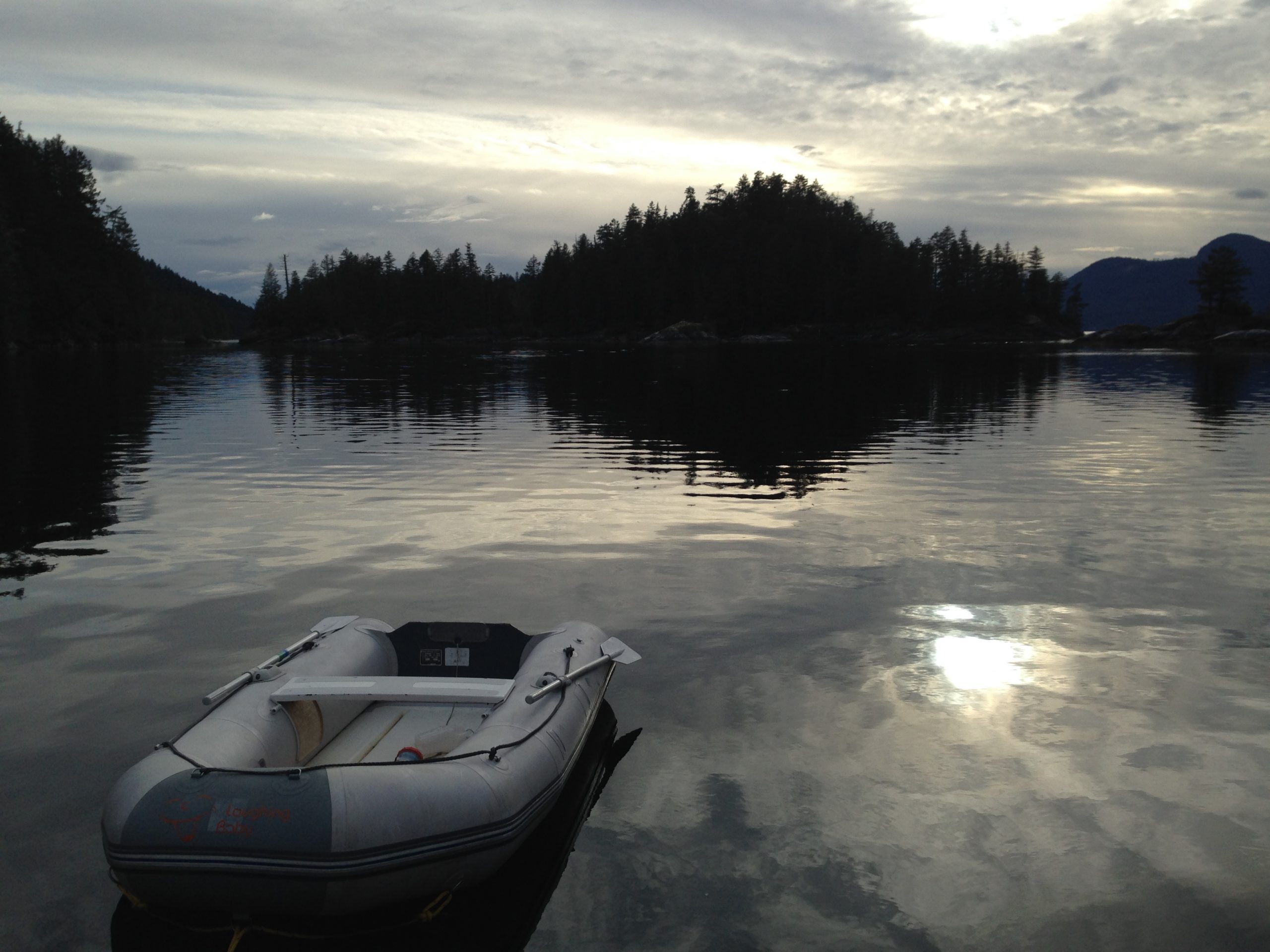
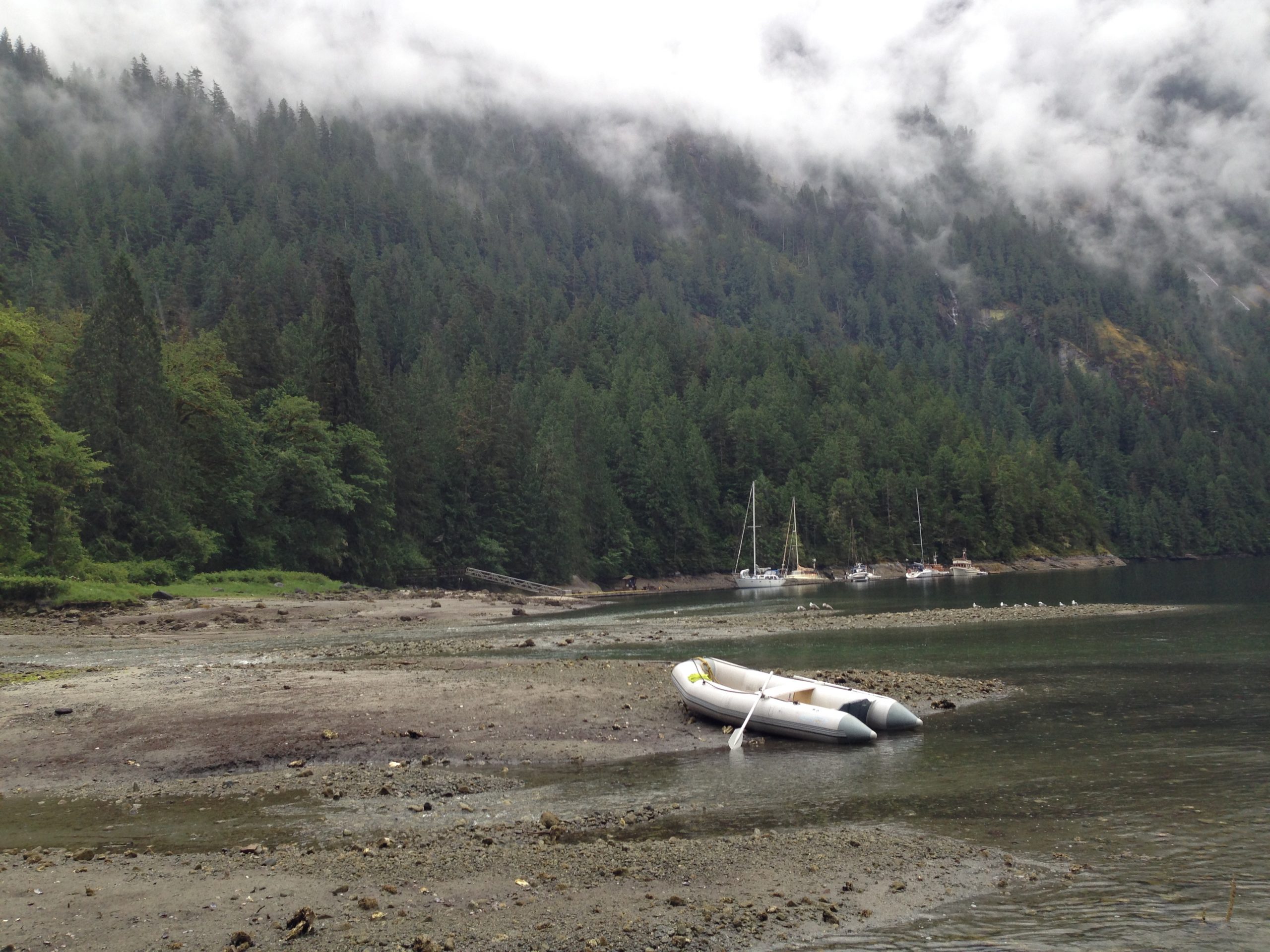
Not completely, but nevertheless it’s a sad day for us. The West Marine 310 RIB we lovingly called Laughing Baby has reached the end of her working life and it’s time to put her out to pasture. (What’s the marine equivalent of pasture…lagoon?) She still floats and as of today doesn’t leak at all. But the wood transom is starting to go and it makes us nervous to put the big 8hp on her these days and worse, the dinghy guys say the vinyl is nearing end-of-life. And since we charter her and the Never for Ever as a team… well she just isn’t up to snuff anymore.
We’ve been keeping an eye out for a good used RIB but haven’t seen anything come on the market that was suitable. Oddly enough there are lots of inflatable bottomed tenders, but the sharp rocks and oyster-filled shallows of the PNW make that just a bit contra-indicated.
A lucky find?
I was checking out kijiji in BC the other day and came across a Highfield 290 UL for under $3000. That was way more than I had in the budget, but the more I looked at it the more intriguing it was. The UL stands for ultralight which means it had an aluminum bottom which was both tougher and lighter the fiberglass of the current boat. At 9’7″, the 290 is about 7 inches shorter that the current RIB and comes in at 86 lbs vs the 113 lbs. But it will still handle the 8HP and fit 4 people comfortably.

I figured if buying new might now be on the table, then I should do my due diligence and call around. At the time I assumed the 2021 Vancouver Boat Show was off (turns out it now is being held virtually in late February) so it thought waiting for a show deal was off the table. I checked out a bunch of dealers and talked to Nanaimo Chandlery — which is run by the same people as Nanaimo Yacht Charters — to see if they could get me a deal but it seemed this Highfield’s price was as good as it first appeared.
So I called SG Power in Victoria to get the scoop. Turns out it was a 2020 floor model and yes, it was still available. So I bought it.
A Small Problem
So now I had a problem. Actually a couple of them. I was in Alberta, the marina was in Nanaimo and the new tender was in Victoria. And we weren’t going to be on the coast before May at the earliest — and even that was up-in-the-air with the Covid situation. The fellow at SG Power was, rightly so, reluctant to commit it to commercial shipping as it was out of the box and it would be hard to ensure it made the trip intact. He did however volunteer to store it for me, even after I told him worst case was us not making it out until spring. Great service and a pleasure to deal with these guys.
The other problem was I really didn’t think Laughing Baby deserved to be unceremoniously discarded as she still had a lot of life left, albeit perhaps not zooming around at high speeds. So now we had two dinghies.
I talked to a few friends on the island but none of them had the facilities or vehicles to help with the problem and the people at NYCSS didn’t have any trips to Victoria planned—although they did generously offer us use of the truck when we finally made it out. So we had a fallback plan but I was hoping to get it dealt with earlier. Then I sent a note off to Matt from Gudgeon to see if he knew anyone. Matt is back in Victoria after he left his boat in Mexico Sadly she is now for sale). He said he would ask around and actually sounded semi-hopeful. I offered a trade of transportation in exchange for Laughing Baby just in case someone with a truck was looking for a cheap dinghy. Fingers crossed.
In the meantime I am talking to a few other contacts/friends and if I have to, I will pay for a rental truck—although that solution still leaves me trying to find a home for the old dinghy.
What’s in a Name
First world problems: another conundrum is what we name the new tender? The original was a compromise, because we thought Laughing Baby wouldn’t play as well on the VHF as Never for Ever, so the I suggested we assign that name to the tender. And that deal still stands. But do we keep the name as is? Add a “Two” or “II” to the end (or “Too” as some people go for.)
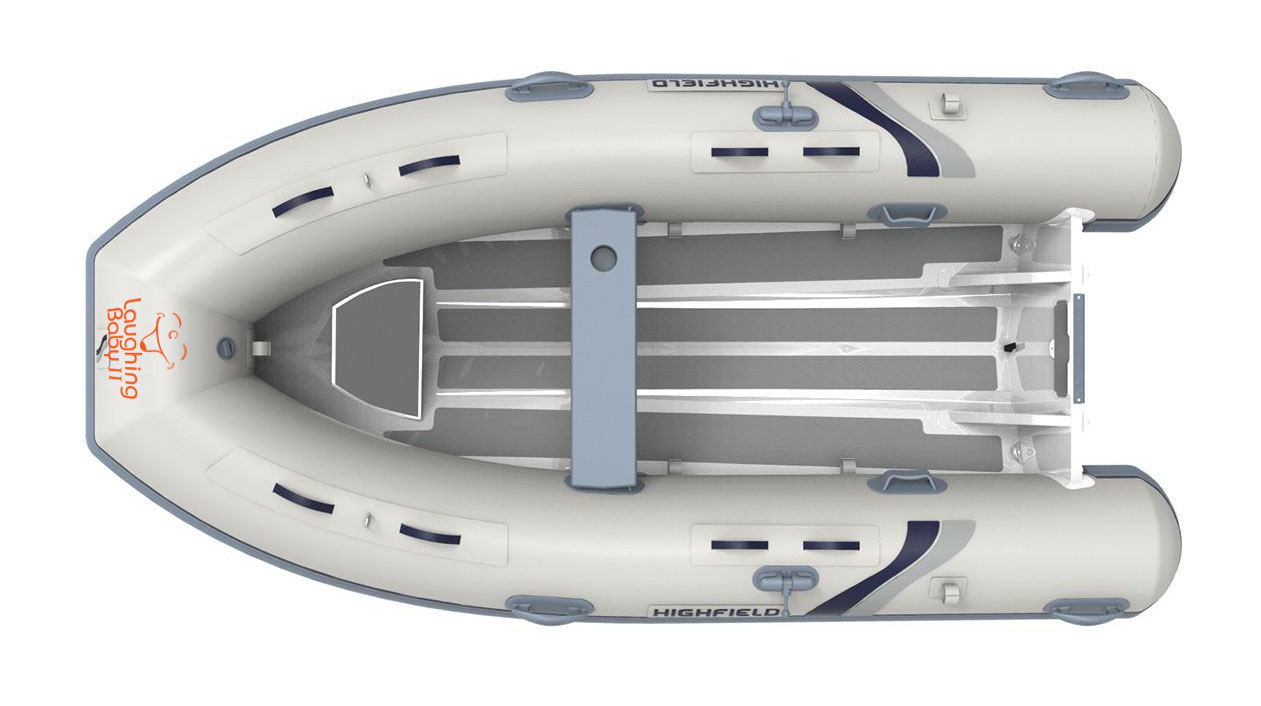
I guess we will wait and see—these boating rituals are sometimes a puzzle.
Happier Days
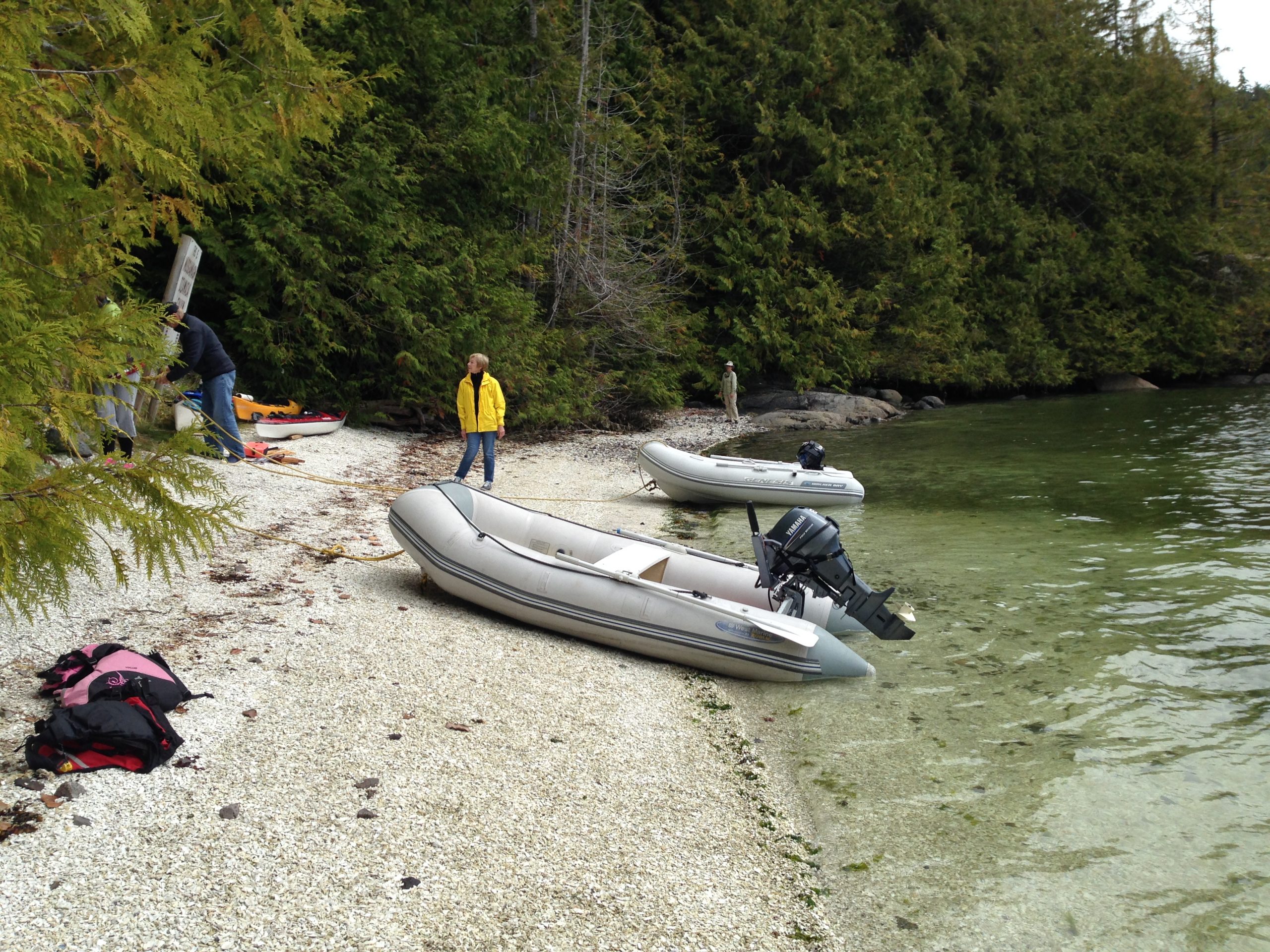
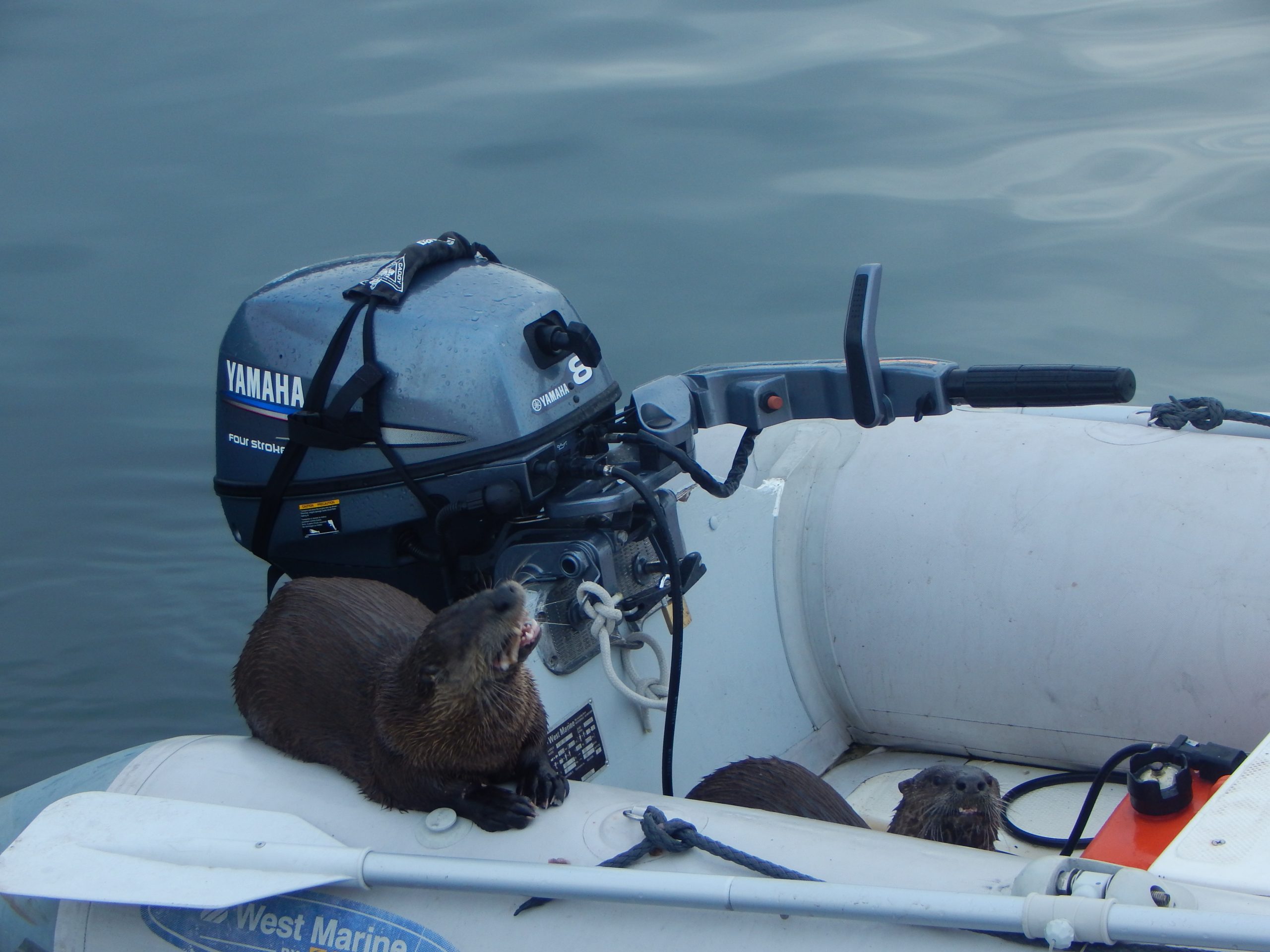
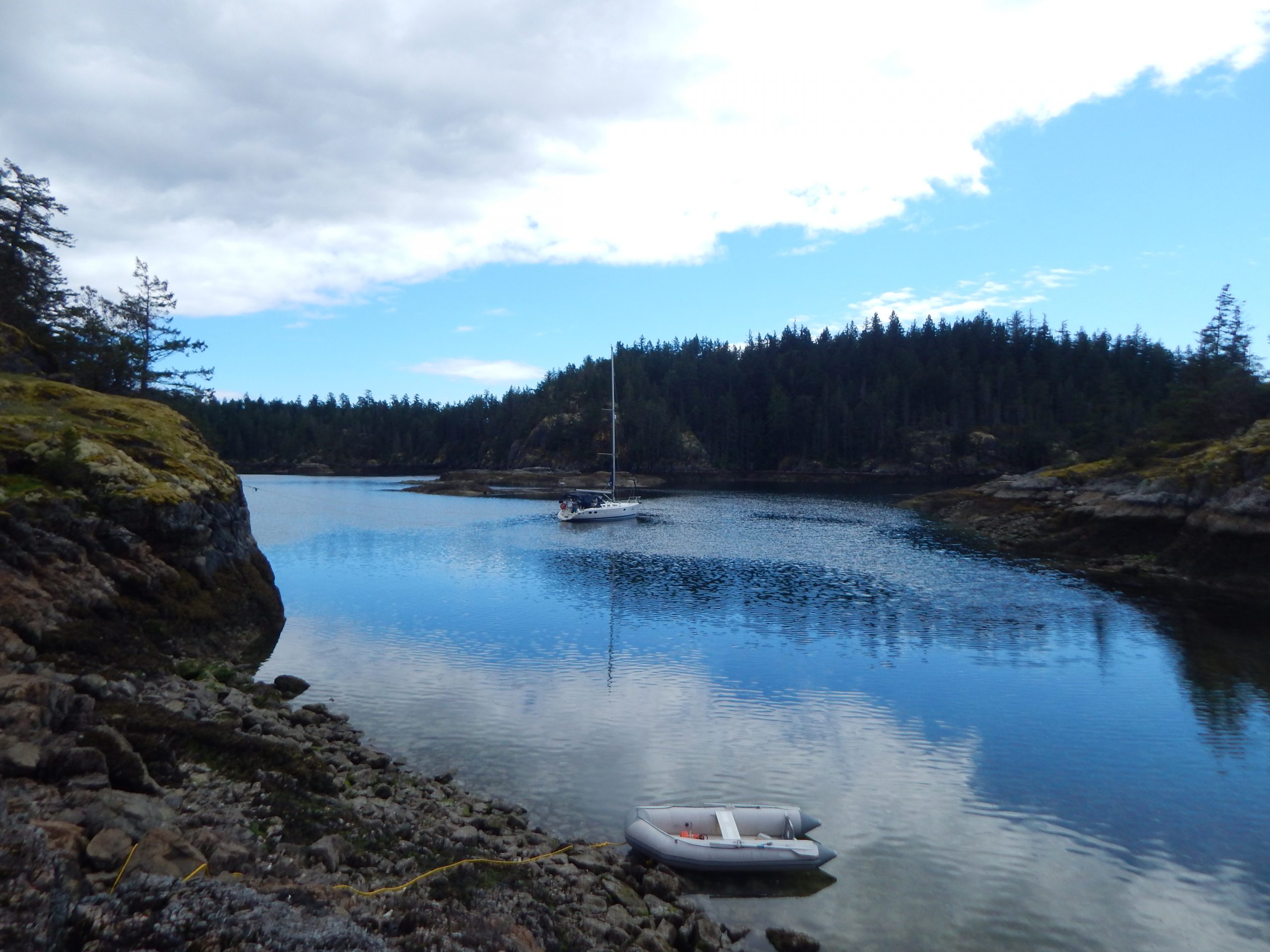
So that’s that. Hopefully we have some fun oaring ahead of us and maybe even a bit of zooming. Finally here are few final images of the adventures we’ve had with the original Laughing Baby over the years—and if you know anyone who will give her a good home, let me know.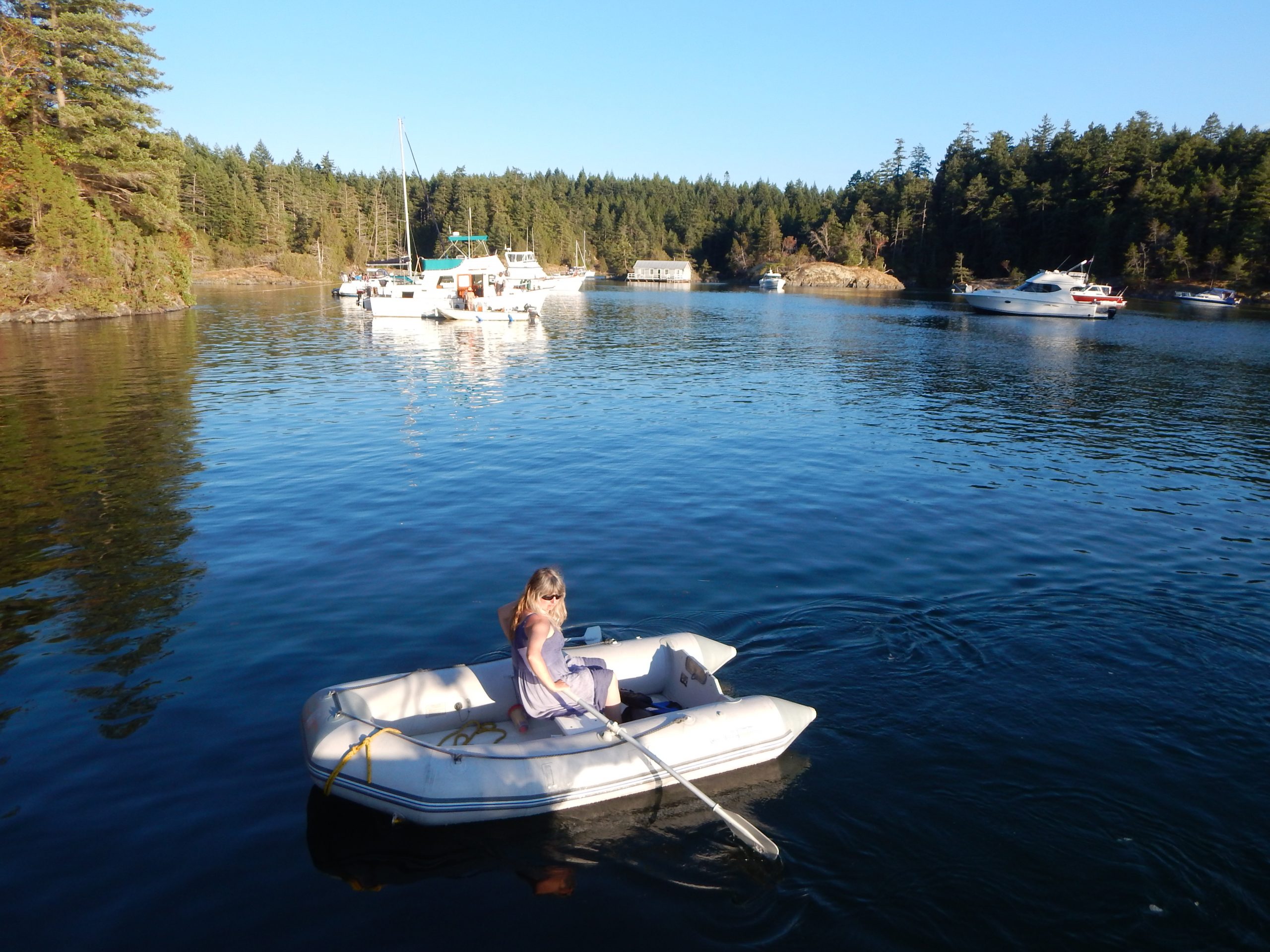



—Bruce #Equipment