Day 3: Waterbound
July 5, 2008
We had a few hours before our train so we dropped our bags and went for a wander. This time we headed north towards the Bastille. It was rainy and damp and we took shelter under awnings as we went. Somewhere along there we used our first French bank machine as well, because we were worried about running low on euros.

The Bastille is now nothing more than a monumental pillar, so we forwent storming it and hung a right back towards the Seine. We came upon a big basin filled with boats and admired them for a bit. Yes, you can canal boat right into downtown Paris. There is even a tunnel (at the end of this particular basin) that runs under half of the old city. It’s on the wish list…


This is also the first time I ever saw C’s hair curly. Apparently rain does that to a do. Who knew?
Eventually we meandered back to the Gare de Lyon and went looking for our train. French trains seem like a bit of a free-for-all. We tried a couple of cars on our train, hauling our luggage in and out, to no avail and eventually moved forward until we found a nice comfortable set of seats. To this day we suspect we had inadvertently upgraded ourselves to first class, but as no one complained and no one ever checked out tickets, we will never know. Pulling out of the huge glass and iron train station was definitely something out of the movies. I can not say enough about the architecture of Paris; as an amateur architectarian I was in my glories pretty much every moment we were there.

An hour or so later we pulled into Migennes (our ultimate boat destination) and scooted under the tracks to another platform to catch our regional commuter to Chatel Censoir. This was a much different kind of train: sort of like a fast LRT, right down to the cyclists. Another 30 minutes or so and we disgorged with our luggage into a small town rail stop and blinked our innocent eyes in wonder that we were here in the French equivalent of Beiseker, Alberta. Thankfully, true to their promise, LeBoat had sent someone for us and they quickly zoomed us down the road to the boat base on the beautiful Canal du Nivernais.

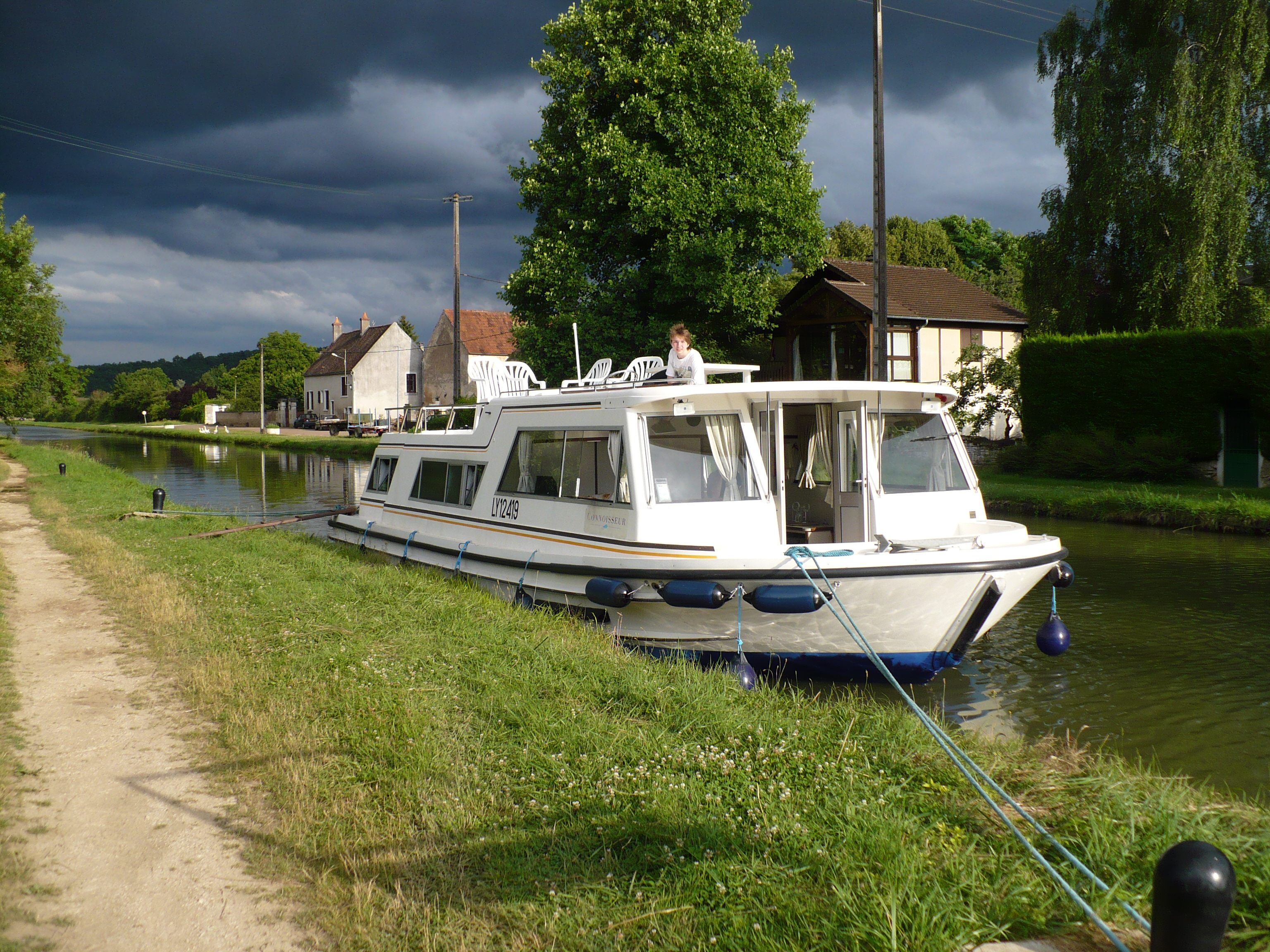
There we dumped our bags, said hello to the local wildlife (giant snails crawling on the shrubs — Burgundy is also the home of escargots) and I proceeded to fill out paperwork necessary to take possession of our Rialto canalboat for the next 11 days. The Rialto was a two-cabin, two-bath, 11.5-metre (37-foot) boat. And it had a flybridge, which was all I cared about. C took one room, L and I the other, and Zak sacked out in the salon. After all the paperwork was filed, stamped, mutilated and mangled, we headed up into town to get supplies from the local store.
Ah, we will never forget the ProxiMarché in Chatel Censoir. To this day, it holds a special place in all our hearts.

Small-town marketing ensued, the highlight of which was spending ten minutes looking for milk and eventually finding it piled up in a back corner. Milk in France comes in tetra-packs and isn’t refrigerated. So they stuff it in back corners where silly Canadian tourists will never find it. This tiny, hole-in-the-wall, small-town convenience store also had a better French wine selection than any liquor store in Alberta. That was when we could tell this was going to be a good trip. This was also when I discovered that C travelled with reusable bags for a reason. A baguette sticking out of a bag on her shoulder soon became the unofficial emblem of the trip.
Back at the base we were showed aboard and introduced to the vagaries of boat life. Marine heads, propane appliances and arcane diesel start-up procedures were explained and mostly digested. Mostly everyone was confused by it all but we figured we could work it out in a more private moment. We discussed lock procedures and tying up to the canal banks for a bit. Then our technician (guide?) fired up the motor and let me take the wheel almost right off the bat as we headed off the dock and south down the canal. He let me get a feel for boat, showed us how to do a three point turn mid-canal and then we headed back to the base to drop him off. By this time it was mid afternoon and we wanted to get somewhere before the locks closed.


We managed to keep the boat in between the banks (mostly) and wandered south under bridges and through two of the prettiest sets of locks in France. I terrified a German fellow in a private boat in one lock by not keeping my motor on and surging forward towards his stern as we rose up the first lock. But eventually I figured it all out. We let him get way ahead so he wouldn’t have to endure us n00bs through any more locks. I also spied some gorgeous Charolais cows and calves on their home turf, this region being where Charolais originated.

The countryside is rural and familiar, but at the same time very different. I guess we are more used to big red barns than old fortified stone farmyards. We pulled into Lucy-sur-Yonne and decided to tie up to the bollards just before the bridge over the canal. Bollards being the big metal things on the bank you are supposed to tie up to.
I suppose I should take the time to explain the locks as well. Depending on whether you are going up- or downstream the procedure differs slightly but the basic idea is the same. We were heading upstream at this point so as we approached a lock (all the Canal du Nivernais locks have lockkeepers) we would wait for the gates to open and the boats (if any) to exit, then head slowly into the lock. Our boat was much narrower than the lock so we would pick port or starboard to tie up on and I would try to ease that side of the boat along the canal wall without bumping off it too many times. This is the real skill in canal boating. Thankfully the boat’s sides are almost made out of fenders so it’s pretty damn hard to damage the boat.
If the lock wasn’t too tall the line handlers (one fore and one aft) would wrap their lines around the convenient bollards. If it was too tall then someone could step off the roof of the boat or, worst case scenario, climb the slimy ladders built into the side of the locks. At this point the line handlers just hold the boat tight to the lock’s walls without tying anything down (very important!) and the lockkeeper ensures the back gates are closed, then opens the sluice gates and floods the lock. The boat rises with the water. After the lock is completely flooded you open the front gates, loosen the lines and drive straight out trying again not to bounce off the damn lock walls too much.
Going down is much the same but easier, as you can step off the boat or just flick the lines over the bollards. This system changes in different regions and Nivernais is the only canal we have been in that had full time lockkeepers. So in other places we had to do some of the work of opening and closing gates ourselves.
Anyway, after tying up in Lucy-sur-Yonne, we walked into the tiny town and explored it for the 5 minutes it took to see all 4 streets and the church. There were wild poppies growing in a field and some beautiful light casting shadows on the fields and buildings. It was pretty splendid first evening. On the way back we saw the sign to Misery and amused ourselves taking some pictures and singing along with the Proclaimers.
Back on the boat we had our first meal, some French burgundy (in Burgundy!) aboard and watched the sunset. A great first day.


My cellphone sees…
Moooon-rise…

Day 1-2: Over There
July 3, 2008
1:40 pm depart YEG (Edmonton)
July 4, 2008
9:40 am arrive CDG (Paris)
We (Leslie, Zak and I) packed up and headed for C’s rabbit hole to pick her up and move her out. This was a first international flight for all of us (except when I was a baby), so we were somewhat clueless as what to expect. We flew into Toronto for a short layover and then it was off over the great big sea.
As far as I can recall, no one got much sleep and the picture of us waiting for the bus at Charles de Gaulle certainly supports that. I have a note in my journal, and I distinctly remember the bus trip being surreal as it first zoomed down the freeway and then maneuvered among the old buildings on the way to our hotel. The bus was, according to my research, the best way of escaping the environs of the airport, especially as it stopped at Gare de Lyon (the next day’s starting point), which was right across from our Hotel Terminus Lyon. Prior planning etc…

We disembarked at the train station, and wandered aimlessly looking for the hotel that was right in front of our faces. The entrance, squeezed between two outdoor cafes, was less than obvious and it took us 10 minutes of wandering before anyone looked up to see the neon sign on the upper floor of the building. We checked in, C eschewing the tiny, tiny elevator, and all flopped on our beds for a quick moment before valiantly heading out to find food.



Next up: the big wander! So we crossed the Seine on the Pont d’Austerlitz and headed west all agog and more than three-quarters stunned. Ain’t jetlag grand! We followed the river enjoying the sights and the to-and-fro of a major European city until the majestic sight of Notre Dame rose up across the water and we stopped to enjoy the moment. And that was the moment that C decided she’d lost her camera. Imagine 3 (Zak was very much blasé about the whole thing) people spinning in circles searching bags and patting pockets in in the shadow of one of Europe’s architectural masterpieces. Yup, we looked that silly.

We didn’t go in — that thing was sporting some of the biggest line-ups I had ever seen — but we admired the grounds, oohed at the gargoyles and ahhed at the facade. We crossed back over and there, right before our eyes, was Shakespeare and Company. Shakespeare and Company is an English bookstore on the banks of the Seine. The left bank in particular. The left bank was the home of the expatriates and literati of the early Modernist period. Leslie is a Modernist scholar. Yes, there was squeeeeing.
The first was opened by Sylvia Beach on 19 November 1919 at 8 rue Dupuytren, before moving to larger premises at 12 rue de l’Odéon in the 6th arrondissement in 1922.[1] During the 1920s, it was a gathering place for writers such as Ezra Pound, Ernest Hemingway, James Joyce and Ford Madox Ford.
This location isn’t the original, but it was close enough for us.


After a longish sojourn, we wandered up the narrow streets and crowded alleys of the left bank. Of note was out first sight of the famous Paris Metro entrances. Each line is decorated in a different style, and I lucked out with my first being a particularly lovely example of Art nouveau. We stopped at an outdoor cafe to rest and I shared my first legal glass of wine with Zak, the French having much more reasonable laws regarding wine than we North Americans.


That was pretty much it for the day. We hung out and explored a little as the sun went down and then headed back to the hotel for some much-needed sleep. Tomorrow we were back on the road (rail actually) and off to see our boat.

France 2008 redux
It came to my attention when doing some research the other day, that I never blogged our first trip to France. Since one of the reasons I record the trips is so I can look them up at a later date, this is a bit of a problem — as I discovered when searching for the name of the wine cellars we toured in Burgundy.
So I am going to go back and recreate that first trip from memory and more than a bit of research and it will then be recorded for posterity. Thus the next dozen or so entries will be my faulty, memory-rebuilt version of Canal Boating in France 2008. Since it was the beginning of July, I will try and match up the current January-esque dates.
Enjoy!

Just ready to go.

Waiting for the bus many hours later at Charles de Gaulle airport.
As a preview, here is my (really bad) video compilation of the trip:
Books I have read — 2014
Another year another list. For the previous two years (2012, 2013) I have been tracking my reading habits and posting them and so as not to break with tradition, my first post of 2015 will once again share with the world the long list of mind-candy that kept me amused and distracted.
So here they are, appearing in the order in which they were read:
Books 2014
Lost and Found Alan Dean Foster (2005)
Taken Trilogy Book 1- ebook;
Wool Omnibus Hugh Howey (2011)
Wool – ebook;
The Black Company Glen Cook (1984)
Chronicles of The Black CompanyBook 1 – ebook;
Shadows Linger Glen Cook (1984)
Chronicles of The Black CompanyBook 2 – ebook;
On a Snowy Night Jean Little/Brian Dienes (2013)
– Hardcover Picture Book
The White Rose Glen Cook (1985)
Chronicles of The Black CompanyBook 3 – ebook;
Lost & Found Shaun Tan (2011 Omnibus)
– Hardcover Picture Book
Tangled Up In Blue Joan D. Vinge (2000)
Snow Queen Book 4 – ebook;
Cryoburn Lois McMaster Bujold (2010)
Miles Vorkosigan – ebook; reread
Necessity’s Child Sharon Lee & Steve Miller (2013)
Liaden Series – ebook; reread
My Own Kind of Freedom Stephen Brust (2007)
Firefly Fanfic – ebook;
And I Love You Ruth Krause & Steven Kellogg (1987)
– HC picture book;
Apocalypse Troll David Weber (1999)
– ebook; reread
Bears Ruth Krause & Maurice Sendak (2005)
– HC picture book;
Sheepfarmer’s Daughter Elizabeth Moon (1988)
The Deed of Paksenarrion Book 1 – ebook; reread
Divided Allegiance Elizabeth Moon (1988)
The Deed of Paksenarrion Book 2 – ebook; reread
Oath of Gold Elizabeth Moon (1989)
The Deed of Paksenarrion Book 3 – ebook; reread
Terms of Enlistment Marko Kloos (2013)
Frontlines Book 1 – ebook; reread
Lines of Departure Marko Kloos (2014)
Frontlines Book 2 – ebook;
Tiassa Steven Brust (year)
Vlad Taltos Book # – ebook; reread
Blood of Dragons Robin Hobb (2013)
The Rain Wilds Chronicles Book 4 – ebook;
Overkill Robert Buettner (2011)
Orphan’s Legacy Book 1 – ebook; reread
Undercurrents Robert Buettner (2011)
Orphan’s Legacy Book 2 – ebook; reread
Armageddon 2419 A.D. Philip Francis Nowlan (1928)
– ebook; reread
Software Rudy Rucker (1982)
Ware Tetralogy Book 1 – ebook; reread
Wetware Rudy Rucker (1988)
Ware Tetralogy Book 2 – ebook;
Golem David Wisniewski (1996)
– HC picture book;
Freeware Rudy Rucker (1997)
Ware Tetralogy Book 3 – ebook;
The Truth of Valor Tanya Huff (2010)
Confederation Book 5 – ebook; reread
The Lion of Farside John Dalmas (1995)
Farside Book 1 – ebook; reread
The Bavarian Gate John Dalmas (1997)
Farside Book 2 – ebook; reread
The Lion Returns John Dalmas (1999)
Farside Book 3 – ebook; reread
The Airlords of Han Philip Francis Nowlan (1929)
– ebook;
The Yngling John Dalmas (1971)
Yngling Saga Book 1 – ebook; reread
The Homecoming John Dalmas (1984)
Yngling Saga Book 2 – ebook; reread)
Hunting Party Elizabeth Moon (1993)
Heris Serrano Book 1 – ebook; reread
Sporting Chance Elizabeth Moon (1994)
Heris Serrano Book 2 – ebook; reread
Winning Colors Elizabeth Moon (1995)
Heris Serrano Book 3 – ebook; reread
Trade SecretseARC Sharon Lee & Steve Miller (2013)
Liaden Series – ebook; reread
Legion of the Damned William Dietz (1993)
Legion of the Damned Book 1 – ebook;
Imperial Bounty William Dietz (1988)
Sam McCade Book 2 – ebook;
Drifter William Dietz (1991)
Drifter Book 1 – ebook;
Wizard’s Bane Rick Cook (1989)
Wiz Biz Book 1 – ebook; reread
The Wizardry Compiled Rick Cook (1989)
Wiz Biz Book 2 – ebook; reread
The Wizardry Cursed Rick Cook (1991)
Wiz Biz Book 3 – ebook; reread
The Wizardry Consulted Rick Cook (1995)
Wiz Biz Book 4 – ebook; reread
The Wizardry Quested Rick Cook (1996)
Wiz Biz Book 5 – ebook;
His Majesty’s Dragon Naomi Novik (2006)
Temeraire Book 1 – ebook;
Throne of Jade Naomi Novik (2006)
Temeraire Book 2 – ebook;
Black Powder War Naomi Novik (2007)
Temeraire Book 3 – ebook;
Empire of Ivory Naomi Novik (2007)
Temeraire Book 4 – ebook;
Tongues of Serpents Naomi Novik (2010)
Temeraire Book 5 – ebook;
Crucible of Gold Naomi Novik (2012)
Temeraire Book 6 – ebook;
Blood of Tyrants Naomi Novik (2013)
Temeraire Book 7 – ebook;
The Republic of Thieves Scott Lynch (2013)
Locke Lamorra Book 3 – ebook;
Like a Mighty Army David Weber (2013)
Safehold Book 7 – ebook;
Scholar L.E. Modesitt (2011)
Imagers Portfolio Book 4 – ebook;
Princeps L.E. Modesitt (2012)
Imagers Portfolio Book 5 – ebook;
Imager’s Battalion L.E. Modesitt (2013)
Imagers Portfolio Book 6 – ebook;
The Meat Market James Chalk (2013)
Jonathon Harkin Adventures Book 1 – ebook;
Hyperion Dan Simmons (1989)
Hyperion Cantos Book 1 – ebook;
Defender Mike Shepherd (2013)
Kris Longknife Book 11 – ebook;
Point of Hope Melissa Scott & Lisa Barnett (1995)
A Novel of Astreiant Book 1 – ebook; reread
Antiagon Fire L.E. Modesitt Jr. (2013)
Imager’s Portfolio Book 7 – ebook;
A Soldier’s Duty Jean Johnson (2011)
Theirs Not to Reason Why Book #1 – ebook;
Point of Dreams Melissa Scott & Lisa Barnett (2001)
A Novel of Astreiant Book 2 – ebook;
Five-Twelfths of Heaven Melissa Scott (1985)
Roads to Heaven Book 1 – ebook;
Silence in Solitude Melissa Scott (1986)
Roads to Heaven Book 2 – ebook;
Empress of Earth Melissa Scott (1987)
Roads to Heaven Book 3 – ebook;
The Sleeping Dragon Joel Rosenberg (1983)
Guardians of the Flame Book 1 – ebook; reread
The Sword and the Chain Joel Rosenberg (1984)
Guardians of the Flame Book 2 – ebook; reread
The Silver Crown Joel Rosenberg (1985)
Guardians of the Flame Book 3 – ebook;
Point of Knives Melissa Scott (2012)
A Novel of Astreiant Book 3 – ebook;
Fairs Point Melissa Scott (2014)
A Novel of Astreiant Book 4 – ebook;
Crown of Renewal Elizabeth Moon (2014)
Paladin’s Legacy Book 5 – ebook;
Libriomancer Jim C. Hines (2012)
Magic ex Libris Book 1 – ebook;
Codex Born Jim C. Hines (2014)
Magic ex Libris Book 2 – ebook;
Trilisk Ruins Michael McCloskey (2005)
PIT Book 1 – ebook;
The Three Pigs David Weisner (2001)
– HC;
Dawn for a Distant Earth L.E. Modesitt Jr. (1987)
The Forever Hero Book 1 – ebook;
The Silent Warrior L.E. Modesitt Jr. (1987)
The Forever Hero Book 2 – ebook;
In Endless Twilight L.E. Modesitt Jr. (1988)
The Forever Hero Book 3 – ebook;
Hawk Steven Brust (2014)
Vlad Taltos Book 14 – ebook;
A Officer’s Duty Jean Johnson (2012)
Theirs Not to Reason Why Book #2 – ebook;
Hellfire Jean Johnson (2013)
Theirs Not to Reason Why Book #3 – ebook;
Hardship Jean Johnson (2014)
Theirs Not to Reason Why Book #4 – ebook;
Unlocked: An Oral History of Haden’s Syndrome
John Scalzi (2014)
Lock In Novella – ebook;
Lock In John Scalzi (2014)
Lock In – ebook;
Mighty Good Road Melissa Scott (1990)
– ebook; reread
Fool’s Assassin Robin Hobb (2014)
The Fitz and The Fool Trilogy Book 1 – ebook;
The Shadow Academy Adrian Cole (2014)
– ebook;
The Fire’s Stone Tanya Huff (1990 [2012])
– ebook;
Snow Crash Neal Stephenson (1992)
– ebook;
The Silvered Tanya Huff (2012)
– ebook;
Islands of Rage and Hope John Ringo (2014)
Black Tide Rising Book 3 – ebook;
Assassin Mike Shepherd (2014)
Vicki Peterwald (Kris Longknife) Book 1 – ebook;
A Call to Duty David Weber & Timothy Zahn (2014)
Manticore Ascendent Book 1 – ebook; reread
A Hymn Before Battle John Ringo (2000)
Posleen War Book 1 – ebook; reread
Gust Front John Ringo (2001)
Posleen War Book 2 – ebook; reread
When the Devil Dances John Ringo (2002)
Posleen War Book 3 – ebook; reread
Hell’s Faire John Ringo (2003)
Posleen War Book 4 – ebook; reread
Cally’s War John Ringo & Julie Cochrane (2004)
Cally’s War Book 1 – ebook; reread
Sister Time John Ringo & Julie Cochrane (2007)
Cally’s War Book 2 – ebook; reread
Honour of the Clan John Ringo & Julie Cochrane (2009)
Cally’s War Book 3 – ebook; reread
Starship Troopers Robert Heinlein (1959)
– ebook; reread
Eye of the Storm John Ringo (2009)
Legacy of the Aldenata Book 8 – ebook
The Stats
106 books; .29 books a day; 2.03 books a week
67 new titles
39 rereads
100 ebooks
I broke 100! I pushed a lot in December as I knew I was nearing the goal, so it probably skews the results a bit, but since the holiday break is typically a time to consume whole books in a day, in the end it doesn’t skew it all that much. I also added in a few paper books which were little more than picture books, but hey, a book is a book in my books.
This year I added a Kobo Aura reader to the stable because of the backlight. The old Sony (PRS-650) has pretty much bit the battery bucket and L was using my new Sony (PRS-T1) a lot on holidays so it was an excuse to make reading at night a bit easier without admitting I might possibly, just a tad, need glasses. Sony is out of the ereader business and there was no way in hell I was getting a Kindle with their proprietary formats so a Kobo was next easier choice. Subsequently I have discovered a raft of other ereaders online that are not tied to any particular retailer (a scam I so so hate) so that will probably be the way I go next time.
That was/is my only beef with the Kobo: it is intimately tied to the Kobo store. I had to get a new Kobo login so it wouldn’t try and take control of my previous purchases and I had to dance through a few hoops to get it set up to sideload through Calibre. Once again people, if you are not using Calibre or some other ebook management system then you are being screwed. Speaking of the Kobo Store, they have finally cleaned up their act and the site usability has gone way up. It is, for now, my go-to ebook store if I can’t buy direct from the publishers although, as I previously blogged about in October, they are on shaky ground with some of their practices.
I also dabbled some more in self-published books this past year and ran into my first serious disappointments. I started strong with Hugh Howey’s Wool Omnibus. I wasn’t surprised at how excellent it was as he has had great commercial success and rave reviews. But my first inkling of what was in store came when I finally got around to reading Stephen Brust’s fanfic ode to Firefly: My Own Kind of Freedom. I am a massive Steven Brust fan but this left me cold and disinclined to read any more fan fiction. I don’t know if it was because it was published without the benefit of a professional editor, or perhaps because his vision of the characters clashed with mine (I had just finished watching the whole Firefly series on Netflix), but I definitely was missing the warm and fuzzy feeling I usually get upon completing one of his books.
Lines of Departure by Marko Kloos, this was a follow up to his excellent Terms of Enlistment which I had read the previous year, was terrific and I enjoyed it as much as the first — Self Publishing Redeemed!— or so I thought.
Then there was The Meat Market by James Chalk. Ugh. Bad plot, bad characters, bad pacing, bad continuity… just bad. I had read reviews, visited his website (This is the home page for science fiction writer James Chalk, author of the critically acclaimed, pulp, cyberpunk technothriller, “The Meat Market.” NOT! I should have known from the quotation marks around the book title this want going to end well.) and done what I thought was my due diligence. And I was burned anyway. I am seriously thinking of deleting the book which, if you know me, is a most serious contemplation on my part.
Trilisk Ruins by Michael McCloskey was next up. This is the first of a 6(?) book series by a “software engineer in Silicon Valley afflicted with recurring dreams of otherworldly creatures, mysterious alien planets, and fantastic adventures.” My thinking was if he wrote that many books then he must have the sales to support it, and if he had the sales to support it then the content must be worthwhile… right? Wrong. I think the actually logic should have gone, if he had 6 books in a series and still hadn’t been picked up by a publisher, then this was a man with more time and energy than actual skill and craft and probably someone to be wary of. Pure dreck. To be fair, the plot and world building wasn’t bad, but he just couldn’t grasp the nature of building a continuous story without whipping out new out-of-the-blue facts to cover his butt every time he got ahead of himself or dropping in big honking deus ex machina‘s from the heavens just to make the story work out. Disappointing enough that I am not even tempted to see if he got better in subsequent books. Which is kinda sad.
But the pièce de résistance of my disappointment was The Shadow Academy by Adrian Cole. This wasn’t even a self-published book but the first title I have bought and read by local Alberta sci-fi publisher Edge. I was so very disappointed. Adrain Cole has apparently written lots of books in the past, but I think he must of gotten lazy, gone senile or just plain forgot how to write. And I think Edge skimped on hiring a good editor. A good editor could have revived this dismal attempt at telling a good story; because the story was good and I was never tempted to stop reading it. I just cringed every 10 pages or so at the bad writing, poor plot development and outright laziness in character development. And nothing says bad book to me than being pulled out of a story. I wouldn’t be reading the brain candy I do if I wasn’t all about the immersion. I’ll probably give Edge another chance, but just not too soon…
One last disappointment was Mike Shepherd’s self-published (under the guise of GCU Press) novella Kris Longknife’s Assassin. I will let this Goodreads review speak for me in this case:
But it loses stars for sloppy newbie errors. Minus 1 star for poor layout and formatting. Minus 1 star for lack of editing & proofreading. The number of typos and other grammatical problems is astonishingly large. Someone who has been trad published really should know better. Minus 1 star for polluting 20% — Yes SERIOUSLY 20% — of the book’s space with promo material for the next one.
I am not sure if Penguin, Mike’s usual publisher, didn’t want to pick up this short work or if Mike himself decided to just give it a go, but the above comments mirror my own. As a designer and production person you got to know editors aren’t my favourite people in the whole wide world, but come on people, there is a reason besides greed that publishers exist and have the processes they do. If you’re going to do it yourself, then at least do it right.
The Library
I am up to 375 ebooks now. That’s 57 more than last year mostly thanks to Zak’s gift of gift cards and the fact that I realized I had points on my Visa that could be exchanged for even more gift cards.
I picked up some backlist Melissa Scott at a new publisher/retailer called Crossroad Press’s store. Check them out as they have a few good titles and while the online store isn’t all it could be, the publisher David Niall is really helpful and deserve some press for his attitude towards independent publishing. Their main site: Crossroad Press
I continue to to break all my DRM’d books and have yet to give away or distribute any title illegally so I still feel pretty righteous about it. I also discovered my first ebook reseller — Tom Kabinet — although they are in the midst of a legal battle. Unfortunately they are Dutch so of little use to me until I learn another language. The world is still in the throes of transition in regards to electronic media with all sorts of subscription models being thrown around in the movies and music worlds. And the first book subscription services are starting to appear, but have yet to break into the big time. Amazon continues their domination of the ebook world and poor ill-informed readers continue to fill Amazon’s pockets with money for books they don’t actually own in formats that they can’t read without giving Amazon even more money to acquire a Kindle. I don’t know how it will all end, but someday (I sincerely hope) the publishers are going to have to come to their senses and stop letting retailers dictate the terms of how their customers use their products. And the fact that they (the retailers) are enabling badly written and edited books to not only be sold in the same marketplace but also produced and ‘published’ is diluting the market and making it even harder to sort the wheat from the chaff (that still being the single biggest issue — in my opinion — that successful marketing of ebooks faces) is not going to end well.
Publishers
Here is a list of publshers of the ebooks as listed in my Calibre library. I find it interesting that I have many more small publishers represented than I do in paperback collection, as well as the fact that some ebook aggregators are taking over the slot of ‘publisher’ in the metadata. If I have time, one day I will go through all the epub buds and Feedbooks and see who the actual publishers are. I suspect — actually I know — that many of the epub bud books are not legitimate and I am slowly working on replacing them with properly acquired copies.
47North (self-publisher) 1
Ace 4
Baen 145
Baker & Taylor 1
Ballentine 15
Bantam 2
BookOS 3
Crossroad Press 4
DAW 2
Del-Rey 3
E-Reads 2
Echo Library 1
Edge 1
epub bud 26
epub books 3
Feedbooks 2
Fictionwise 2
GCU (self-publisher) 1
Gollanz 1
Grand Central 1
Harper Perennial 1
Harper Collins 8
InfoCOM 1
Jabberwocky Literary Agency 1
JRH Publishing (self-publisher) 1
Knopf Doubleday 1
Lethe 2
Little Brown 2
MacMillan 2
Manybooks.net 15
Melissa Scott (self-publisher) 2
Michael McCloskey (self-publisher) 1
Nightshade Books 2
Open Road Media 3
Orbit 5
Penguin 14
Project Gutenberg 8
Roberts Brothers 1
Scalzi Private Reserve (self-publisher) 1
Sharon Lee and Steve Miller (self-publisher) 2
Signet Classics 1
St Martin’s Press 2
Steven Brust (self-publisher) 1
The Pennsylvania State University 2
The University of Adelaide Library 3
Thomas Dunne 1
Tor 44
Touchwood Editions 3
Wordfire Press 1
So there you have it: 2014 in a, albeit rather large, nutshell. First up for 2015 is a real book: Neil Gaiman’s The Sleeper and the Spindle.
Leslie’s summary booklist can be found here: My Reading Rainbow. Not a complete list but all, I think, we are going to get out of her — except the totals which are found right here. Earl’s book list is now up here.
My cellphone sees…
Meat and fire! All a man really needs. And some shabu shabu of course…

My cellphone sees…
Someone's glad we're home…

Markdown Syntax for Dummies
Further to my post of a few days ago, I have compiled an easier-to-read list of Markdown’s syntax for future reference.
Basic Character Codes
**strong** or __bold__
strong or bold
*emphasis* or_italics_`
emphasis or italics
two spaces followed by a line break
Head Levels
Pound symbols (one for each level) followed by a space
## H2 Level Head
H2 Level Head
Block Quotes
> Block Quote text
Block Quote text
Lists
Unordered lists use asterisks *, pluses +, and hyphens —, followed by a space, interchangeably as list markers:
* bob
* frank
* sue
Ordered Lists have any numeral (e.g. 1) followed by a period and a space
1. abc
1. bcd
4. cde
1. abc
1. bcd
4. cde
Code
INline code can be displayed by using backticks ` at the start and end`
sudo write code here
Code blocks can have 3 backticks ``` at the start and finish:
line one code

line two code

line three code
Horizontal Rule
Three or more hyphens, asterisks, or underscores on a line by themselves
***
Hyperlinks
This is [an example](http://example.com/) inline link.
This is an example
or
Define [ID1]: http://example.com/` as a link anywhere in the body and call it usingID1`
ID1
Images


Images can also be defined. Define [ID2]: http://macblaze.ca/wp-content/uploads/2014/12/1-150x82.jpg`ID2`
and call it using
ID2
Backslash Escapes
Markdown allows you to use backslash escapes to generate literal characters that have special meaning in Markdown’s formatting syntax.
\*literal asterisks\*
*literal asterisks*
\ backslash
` backtick
* asterisk
_ underscore
{} curly braces
[] square brackets
() parentheses
# hash mark
+ plus sign
- minus sign (hyphen)
. dot
! exclamation mark
Tables (Markdown Extra)
(doesn’t seem to be working on WP’s Markdown interpreter)
|Trees|Cats!|Beer?|
|---:|:---|:---:|
|oak|ginger|ale|
beechnut|calico-cross|pilsner
walnut|manx|stout
| Trees|Cats!|Beer?|
| —:|:—|:—:|
| oak|ginger|ale|
| beechnut|calico-cross|pilsner
walnut|manx|stout
My cellphone sees…
Visiting home is always a little like time travel…

My cellphone sees…
Y'arrr! Here be Pirate's Fluxx!
