Ubuntu notes
I had my Pi 400 scaling go wonky when using VNC.
To reset it run:
export DISPLAY=:0

xrandr --fb 1920x1080
20 years… time flies.
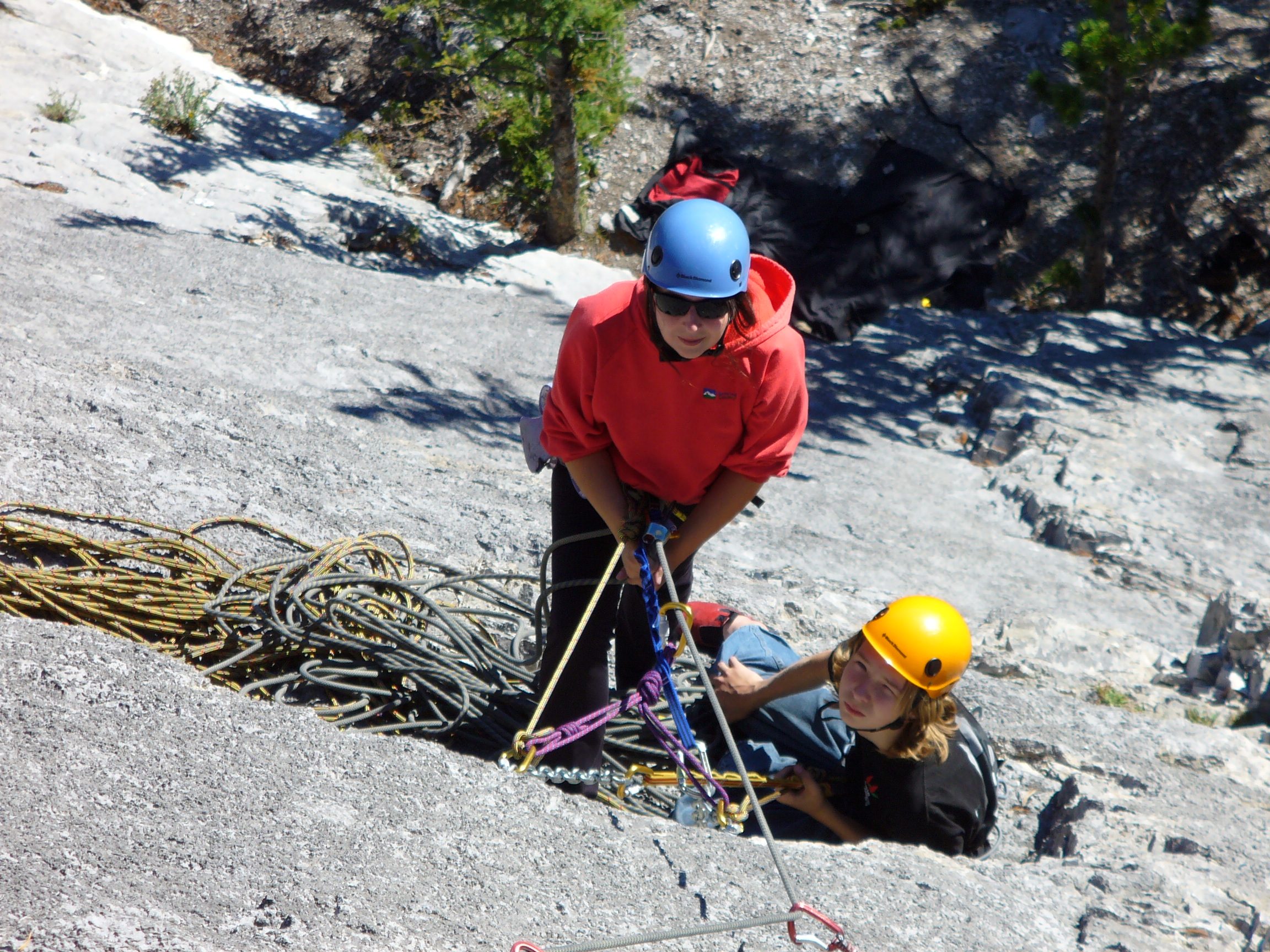
Remember when..
We ran into Tom Wharton (who I haven’t seen since around the time this picture was taken) at the symphony the other day and remembered this picture. Tom isn’t in it but he was the author/artist of the poster on the window behind us. Probably the most famous (and nicest) person I know from back then.
Weren’t we young 🙂

Nginx Notes
Way back in https://macblaze.ca/?p=14445 I set up Nginx to handle port forwarding to my home computer. Since then I have modified it a bot and I wanted to make a not of those mods here.
Site in a subfolder
- I have the subdomain xxx.macblaze.ca.
- I want to have it access a site at 192.168.1.xx:8080
- in a folder /folder
Set up the subdomain as usual
- go to Custom Locations
- location
/ - Forward Hostname/IP
192.168.1.xx/folder - Forward Port
8080
Docker container
- ensure the container and Nginx’s container are on the same network. (current code method)
Set up the subdomain as usual
- go to Details
- Forward Hostname/IP
<container-name>(get usingdocker ps --format "{{.Names}}")
or Container IP - Forward Port
<the internal port>
Two Sites/Apps on one subdomain
- I have the subdomain xxx.macblaze.ca.
- I want to have it access a site at 192.168.1.xx1:8080
- I want the subdomain xxx.macblaze.ca/app to access an app at 192.168.1.xx2:8080
Set up
- the subdomain as usual for the site
- go to Advanced Locations
- Add:
location /app {
    proxy_pass http://192.168.1.xx2:8080/;
}
location /app/ {
    proxy_pass http://192.168.1.xx2:8080/;
}
Ahoy… AI
I was going though deleting threads in Chat GPT the other day (it swears if i delete them it won’t remember them …. hmmmmm….). Anyway I decided to add back in a bit of personal data by way of Penelope.
It took this:

“this is my cat . Can you give me an image of her as a napoleonic era sea captaiin. tuck her ears in the hat and have a cannon fring from the ship in the background”
(Note: AI is making my typing so lazy!)
And gave me this:

Add a python app
Just computer note…
I wanted to run a Flask web app for L’s Moodle conversions and doing it on the Mac server seemed the best idea. I put the web app into the www folder. Here were the steps…
cd /to_folder
python3 -m venv venv
source venv/bin/activate
pip install Flask
pip install pypandoc
python3 main.py
To come…
Add Gunicorn
New(ish) Kobo

Back in July I thought I would spend a little money on a treat for myself. I didn’t need an new ereader (my old Aura was still working ok, albeit was a bit battered) but I wanted to check out the side handle on the Libra to see if it was more comfortable when reading at night.
A recap
I started back in 2009 with a Sony PRS-650. I used that until its battery died. Then I switched to a Sony PRS T1 in 2013.
In 2014 I got a new Aura HD because I wanted a backlight (and was immediately a bit annoyed when I realized you needed to have a Kobo account just to use it to read books). I worked around that by having an account for the ereader that I never used and a separate account for any purchases I made and side loaded all my books through Calibre. This got replaced in 2017 with a new generation Aura after an unfortunate accident involving a suitcase and hard airport floor.

New reader
Which brings me to this year and my new Kobo Libra 2 with a colour screen. It’s not bad. I don’t much have use for the colour screen and the variable colour backlight is a bit annoying (more on that later). But over all I like the way it feels in the hand, like the fact the page turn buttons are back (haven’t seen them since the Sony) and am appreciative of the move to usb C.
Account registration
One of the bonuses was I looked into the whole “must have an account to use” idiocy again and found a hack:
- Connect Libra Colour to PC.
- Go to \.kobo\Kobo and find the Kobo eReader.conf file.
- Open the file and add the line
SideloadedMode=trueunder the [ApplicationPreferences] section. - Done! The device will now display the “My Books” tab straight away, and the online store will be disabled. You can re-enable everything by doing the same thing and adding
SideloadedMode=falseinstead oftrue.
You lose the main screen that shows the Books Reading etc but since I rarely used that its no great loss.
The downside is there are a number of “ghost” titles in the lists showing up under Author view that must have been something to do with promotions and I assume they would have been deleted int eh intial setup but annoyingly show up when I am browsing books on the ereader itself.
I have screwed around with editing the hidden KoboReader.sqlite file on the eredaer and while I can find the books in some tables, deleting them doesn’t seem to get rid of them. I imagine there are associated tables I need to clean as well but so far no joy unless I want to delete everything and start over. Still a possibility…
Battery life
I had/have a beef with the battery though. The Libra has a fancy dimming functionality. If you set bed time for, let’s say 11:00 pm, it will start slowly changing the colour of the backlight from cool (blue) to warm (orange) and dimming the screen for reading in the dark. I thought this was the cat’s meow.
But.
The battery life sucked. I mean I was recharging every 4 days! One night I hit the 10% battery life warning which used to mean I had several hours of charge left and it went out on me in less than 15 minutes. This was beyond unacceptable. I didn’t want colour at all, let alone if it was going to be such a huge battery suck. But googling yielded no solutions or even anyone else’s notice of the problem — I was starting to think maybe I got a dud ereader.
Then I started fiddling with settings and one night turned off the automatic dimmer and dialed the backlight down to 30% — which is a bit below my preferred level but workable. The next morning the battery indicator showed it was still full. Aaargh. I have left it that way and played with the colour and level and so far so good. It has only been a couple of days but the improvement is significant. I will keep on playing and see if I can nail down the exact battery-draining culprit, but so far it seems its just the timing function. Why Kobo would have such a ridiculous battery suck as a bart of the software is beyond me.
Happy?
I think so. I like the handle and page turn buttons. Now that the battery is better I have more faith in it (although I now keep my old Aura up to date and charged in case). It is a bit more bulk and doesn’t fit in a pocket anymore but that’s not an issue I care too much about except when my hands are full. And it is zippy! Interface things the Aura used to do badly like scrolling actually make sense now that the response is immediate instead of having to pause between touches.
But if I am feeling rich again I might finally break down and try a Boox or a Pocketbook. Still annoyed at Kobo? Why yes, how could you tell…? 🙂

Postiong Memes… Huh
I seem to keep coming across these and feel they aren’t quite appropriate for public posting but still I want to remember them.
This one isn’t about people so much as how I currently feel about international politics and diplomacy.

JOY!

Immich Implemented
Well I think I an 90% sure this is the way I will go. Back in New Image Management? I mentioned I was testing Immich as possible replacement for Apple Photos and the iphone app. I tested it out and even used it at a family visit to Brooks and so far it has performed flawlessly. I covered some of this in the original post but I thought I would add in a bit more detail.
Server
I have this installed on my Mac Mini (2019) which has basically become my server these days. Maybe a post later about how that is set up now. Much of this is based on https://rhettbull.github.io/osxphotos/tutorial.html‘s tutorial.
Step 1 Docker
Everything is Docker (containerized) so, other than the Docker overhead, it is pretty clean install-wise. I decided to go with Docker’s Docker Desktop for the Mac rather than jump through the hoops to install it on the system itself… lower overhead vs easier management… and I was lazy.
Then I followed Immich’s install guide. The only real tricky part was that on a Mac if you try to ‘get’ the .env file it immediately is invisible (wget -O .env https://github.com/immich-app/immich/releases/latest/download/example.env). So I modified the command to read wget -O example.env https://github.com/immich-app/immich/releases/latest/download/example.env and then after editing it renamed it (in terminal mv example.env .env) to .env
The .env (Environment)
I changed the location of my library to a folder on my Mini and decided to put the postgres database there as well. Not sure if this is best practice but I am tired for hunting for elements years later when I need to change or clean up something. And then I set the time zone to America/Edmonton.
Just a note to remind you if you want to edit the .env in a text editor then hit cmd-shift-. (period), this will show all the invisible files so you can just drag the .env file to BBEdit etc. Just remember to hit cmd-shift-. again to hide them all or all the hidden files will clutter up everything.
Save the file.
Docker Compose
Make sure you are in the right directory (the one with all these files) and run the downloaded docker compose command docker compose up -d. This will invoke Docker, run though the compose file to download and set up everything and the -d ensure it is running in the background.
That’s it. You should be up and running at http://<machine-ip-address>:2283
Step 2 Apple Photos
The next big challenge is to get the photos from Photos to Immich.
If, like L, you have a bunch of images on your phone or iPad that aren’t on your desktop the easiest was is to download the Immich App from the store and set it up to back-up all the images. Once that’s done you can set it to only back up Recent and every time you open Immich on your phone it will upload the images to the server.

As for the main Photos Library I covered that back in the original post (New Image Management?).
Settings
A few settings and tweaks.
- I enabled tags Account Settings > Features > Tags. This shows all the tags that I had set in Photos and allows me to set more.
- I changed the library so it organized itself in a more understandable way. Originally all the images were stored in folders like /Immich/upload/8e403d85-6740-4ba7-8549-0feb702f0cb3/6a/04. By going to Administration > Settings > Storage Template and enabling it you can set the folders to year/month/ date etc. and it will migrate all the images to the new structure e.g. /Immich/library/User-1/1956/1956-01-01/001 – 1956.jpg.
- Then you have to go to Administration > Jobs > Storage template migration and click Start
A Second Library
One of the neater things is that you can set up a second user and use the server for them as well. I did this and set up all L’s images to be stored in a different folder. Note that when you set up the user you then should go to Administration > User and click the three dots to edit the account. Change the Storage label to whatever you wan the folder to be called.
Then either before or after you migrate their images. Make sure you repeat the Storage template steps above.
Sharing
Now, if you want, you can set it up so the other user can see all of you images in their own Immich instance. Account Settings > Settings > Partner Sharing. Add the other user and they can see pretty much everything by clicking on Sharing in the main sidebar.
External Access
I am still not sure if I will use this as something that is accessible external to my firewall. I did briefly set it up to one of my test domains when I was away and it worked just as advertised. i took a picture, opened the Immich app and voila it was available pretty much instantly on the web interface.
But if I leave it inaccessible, the app stores all the thumbnails so I can”see the images wherever I am and when I am back in my own network I can upload the images then — which is pretty much how I did it with the old system. the only difference being if I want a high-res version of a photo when I am away from home I am screwed unless I VPN back in… and I rarely leave the VPN running unless I am away for extended periods.
Hmmm….