Category: Computers
Bit Torrent & Studio 60
I missed the season’s premier of Aaron Sorkin’s new show Studio 60 on the Sunset Strip because, well frankly I forgot the Aaron Sorkin had a new show. So a few nights a go as the second episode was about to air I thought to myself ” hmmm, there’s gotta be away…”

I checked out nbc.com and lo and behold they actually had it available on line… e xcept in my area…sigh. I’m assuming its one of those Canada – U.S. things that prevents us from getting tv shows and movies from iTunes. But it did mean that the files were available and that someone, somewhere must have been clever enough to download them.
A quick google and… voila.
It seems there was a torrent file out there. I’ve never used a torrent client before having pretty much given up my software stealing ways and becoming addicted to iTunes for music downloads. Nevertheless about 10 minutes later I was busy downloading the stream on my PC and approximately 1 hour later I was watching the .avi file full screen on my iMac using VLC (as Quicktime player wouldn’t work). Meanwhile I set up the PC (an HP tv convertor and Windows Media edition) to record the the next episode just in case I didn’t get finished with episode 1. As it happened I finished the first episode about 10 minutes before the second one came on the air.
The point… we really are living in an on-demand culture!
Samba printing
Enable Samba printer sharing in System Preferences by clicking Sharing → Windows File Sharing. If you upgrade your MacOS version, check to see that Windows File Sharing is still enabled. Caution: if your network is not behind a firewall blocking ports 137 and 139, and you haven’t limited access in /etc/smb.conf, enabling Samba could share your printers and files with the world.
One user has reported that with some versions of MS-Windows he needed a user account on the Mac for each user on the PCs in the network, with the exact name (including capitalization) and password as used on the PCs.
On the ms-windows PCs on your network:
* Go to Network Neighborhood and click on the name of the Mac. You should see an entry for printers and separate entries for each printer you are sharing from the Mac.
* Click on the printer you want to configure.
* In the pop-up, supply the driver to use: if the Mac printer is b/w, use Apple Laserwriter; for a color printer use Apple Color Laserwriter. You may have to insert your system disk or give the path to the printer drivers for ms-windows to find the driver.
* Click OK or Add or whatever your version of ms-windows uses to add a new printer.I know: you probably don’t have an Apple Laserwriter. You still want to use the Apple Laserwriter drivers. The goal is to send proper Postscript to the Mac, which CUPS and the gimp-print drivers on the Mac will translate to the codes your printer understands. Microsoft drivers are notorious for non-portable Postscript, but the Apple Laserwriter drivers work.
You should now be able to print from the PC to the printer on the Mac.
New Toy
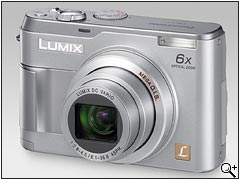
I picked up a new toy… a Panasonic Lumix DMC-LZ1 with a 1 gig sd card. So far so good.
I like the camera and its perfect for those quick snapshots. Oddly enough the only thing that seems missing is the audio on the movie mode… didn’t think I’d need it, but it seems wrong now that I don’t have it.
Post some pics soon…
WordPress 2
Tried to install WordPress 2 and screwed the privileges somehow…
A handy php page found: test5.php gave me the error message (Client does not support authentication protocol requested by server; consider upgrading MySQL client) and this gave me the cure:
***
Alternatively, use UPDATE and FLUSH PRIVILEGES:
mysql> UPDATE mysql.user SET Password = OLD_PASSWORD(‘newpwd’)
-> WHERE Host = ‘some_host’ AND User = ‘some_user’;
mysql> FLUSH PRIVILEGES;
***
fixed it!
Not so hard drives
Since I basically pillaged Zak’s PC to get mine up and running, he is left without access to his files. So I had him transfer the HD to the external case and copied what he needed via USB 1 (with the requisite error messages about the wrong port speed). Then for kicks I plugged it into the iMac via firewire and lo and behold it mounted right up and the files where there for all to see…
We are a VERY long way from MacLink
Manuh…
Updated the Manuh page with a quicktime version of the Muppet Show scene from the dvd.
Burn Out
So I’m sick… I stay home to work… I clean my desk (take apart the computers etc.)… I put everything back together… the PC has intermittent fan problems and keeps overheating and shutting down. Then I move to Ruby (the slot loading iMac) and it won’t power up…wiggle the power cable… wiggle the cable some more… wiggle the cable one more time and poof…a flash of smoke and light and no more Ruby.
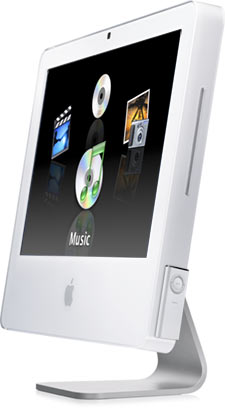 Well at least I got a new computer out of it! Of course this means reinstalling everything again and since I made the move from 10.3 Server to 10.4 I couldn’t just copy over the files.
So I reconfigured the existing apache, installed Mysql 5.o.13 and PHP 4.3.11( I got the package from Marc Liyanage’s website and it worked slick) and fought the permissions to copy the old databases over (oh, I bought a firewire case for Ruby’s HD… makes it so much easier). It was a matter of shutting down MySql copying the databases, changing the owners to mysql and the permissions to rw. I fought with the sequence quite awhile and kept forgetting about the folder permissions.
Now I’m working on getting Imagemagick up and running. I’ve installed the package but I think I need to reconfigure the plugin again.
I also installed SharePoints which I highly recommend. It mimicks the GUI from OSX Server and allows you to easily set AFP and SMB permissions on non-server versions of OS X. I’ve got the shares set up again and it seems to be working pretty slick.
That’s it for now…still sick
Camera Phone
This is an image from Bill’s Camera phone… resized to 480px using a droplet in ImageReady and uploaded via the upload function in WordPress. The next step is to install ImageMagick on the Xserve and try this again with Image Manager plugin on enjoygardening.com…

ImageMagick and more…

This on the other hand is an image uploaded and resized using the below software.
ImageMagick etc.

An example of a knot. And an image linked and resized using imagemagick and ImageManager. Lets see if it worked